Change your timezone, currency, time format or week start
Admins change these account-wide preferences in Settings, under Account preferences. They apply to everyone in the account.
Who can do this: AdminsUpdated · 2 min read
Step 1: Click Settings in the top menu and scroll to Account preferences.
Step 2: Change Timezone, Currency, Time format or Week starts on.
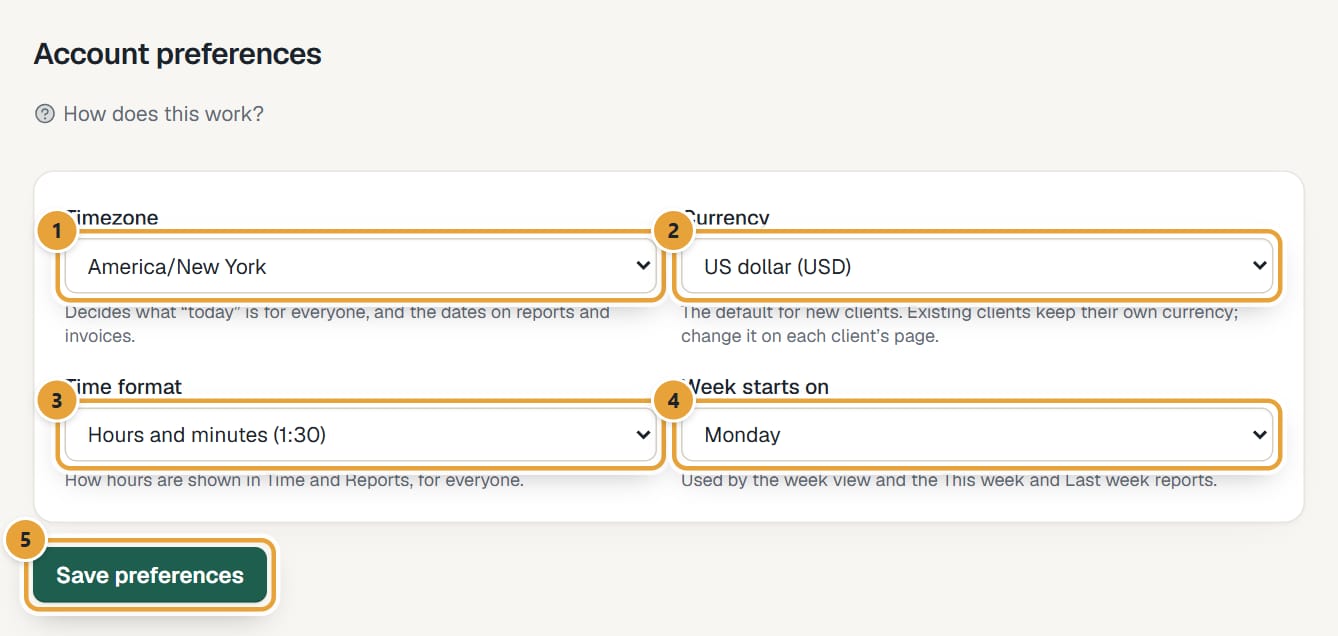 (opens the full-size image)
Step 3: Click Save preferences. You'll see Preferences saved. next to the button.
What each one changes
| Setting | What it changes |
|---|---|
| Timezone | What "today" is for everyone in the account: the day view, the week, report periods and invoice dates. |
| Currency | The currency new clients start with. Existing clients keep their own currency, and so do their invoices. |
| Time format | How hours are shown in Time and Reports: decimal (1.50) or hours and minutes (1:30). |
| Week starts on | The first day of the week view and of the This week and Last week report periods. |
A client's currency
Each client's invoices use the client's own currency, which you can change on the client's page: Add clients and contacts.
Didn’t find what you needed?
Ask in Help inside the app, or email [email protected]. We aim to reply within 2 business days.