Set up invoicing: business details, logo and defaults
Before your first real invoice, fill in your business details in Settings. Some countries require them, and LockedHours won't issue an invoice while something required is missing.
Who can do this: AdminsUpdated · 2 min read
Your business on invoices
Step 1: Click Settings in the top menu (admins only), or Settings on the Invoices page.
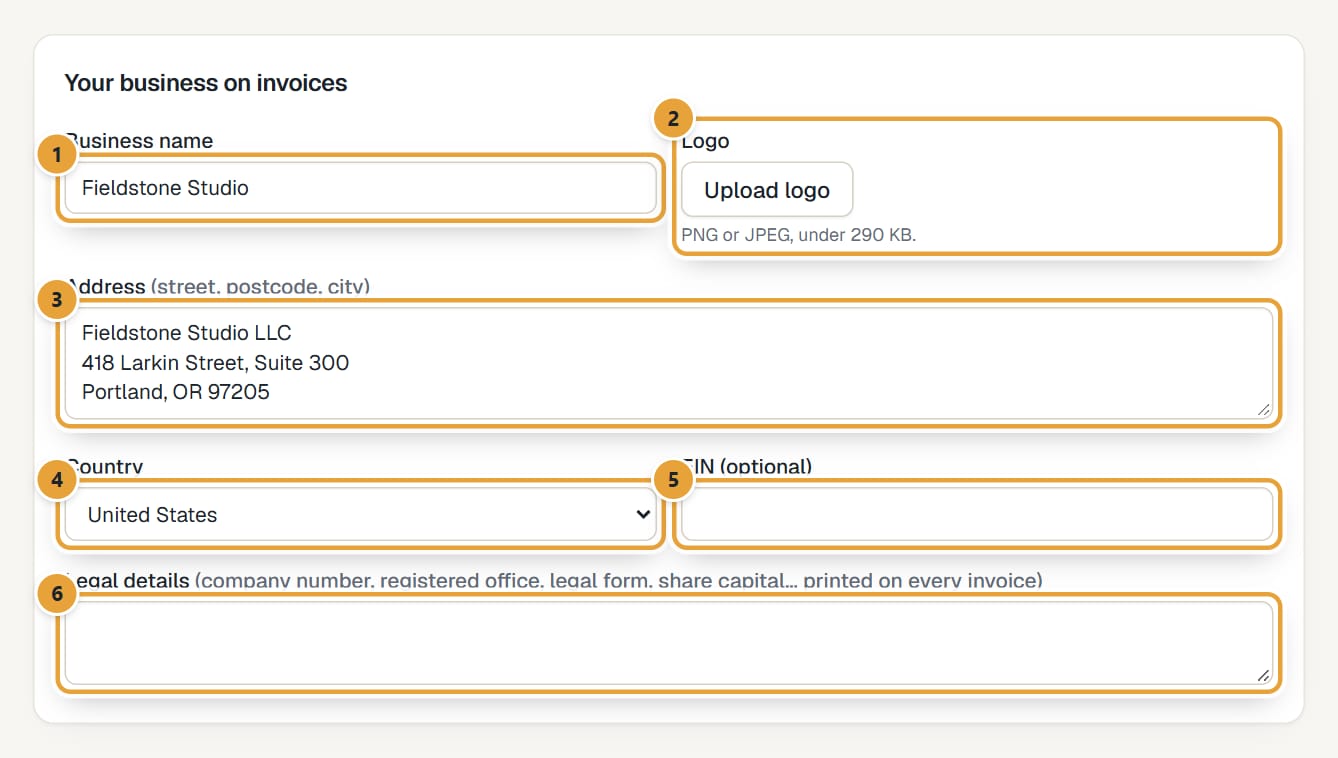
Step 2: Under Your business on invoices, check Business name. It's printed on invoices and is also your account's name in the app.
 (opens the full-size image)
Step 3: Click Upload logo and choose a PNG or JPEG under 290 KB. A preview appears next to the button, which then says Change logo. To remove it later, tick Remove logo.
Step 4: Fill in Address (street, postcode, city), as it should appear on invoices.
Step 5: Choose your Country. It decides which details are required and what's printed on your invoices.
If your country isn't in the list, write to [email protected]. In some countries LockedHours can't issue legal invoices yet; a warning appears as soon as you choose one. See Invoicing in Spain and other countries with special rules.
Step 6: Fill in your tax number. The field's name follows your country (VAT number, EIN (optional), ABN, GST/HST registration number…).
Step 7: Fill in Legal details if your country requires them (company registration number, registered office, legal form, share capital…). For France the label says they're required.
Numbering
Set your invoice number format and the next number. Details in Invoice numbering.
Defaults for new invoices
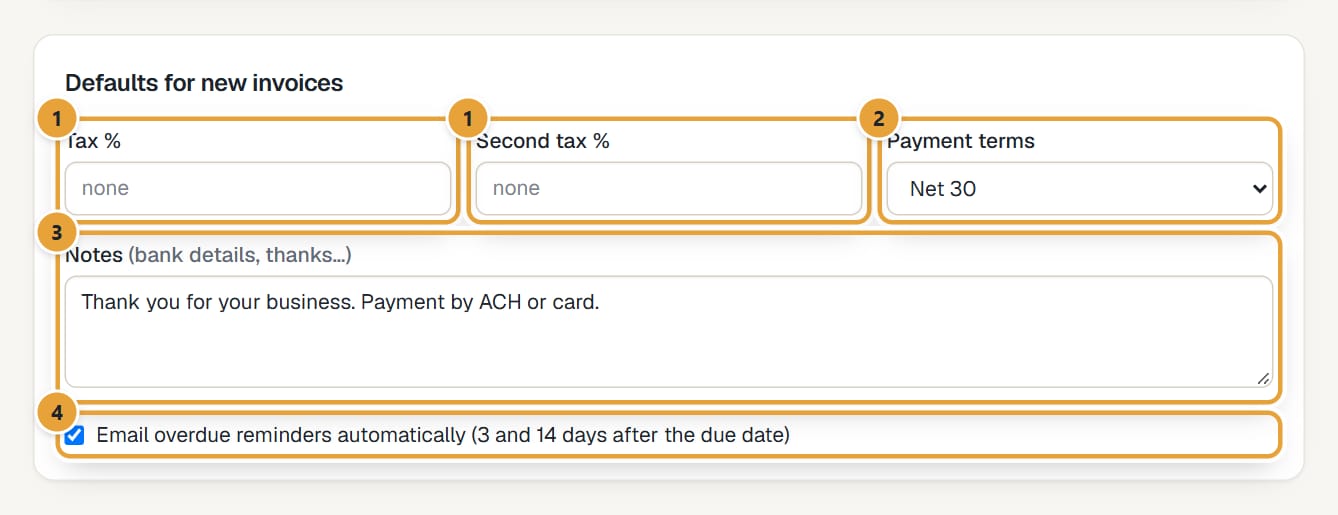
Step 1: Under Defaults for new invoices, fill in Tax % (and Second tax % if you charge two taxes) if most of your invoices charge tax. Leave them empty for none.
 (opens the full-size image)
Step 2: Choose the Payment terms: Upon receipt, Net 15, Net 30, Net 45 or Net 60.
Step 3: Write the Notes printed on every invoice: bank details, how to pay, a thank-you.
Step 4: Leave Email overdue reminders automatically (3 and 14 days after the due date) ticked, or untick it. See Overdue reminders.
Step 5: Click Save settings. You'll see Settings saved.
Defaults only fill in new invoices; you can change them on each invoice. Changing them doesn't touch existing invoices.
On a phone
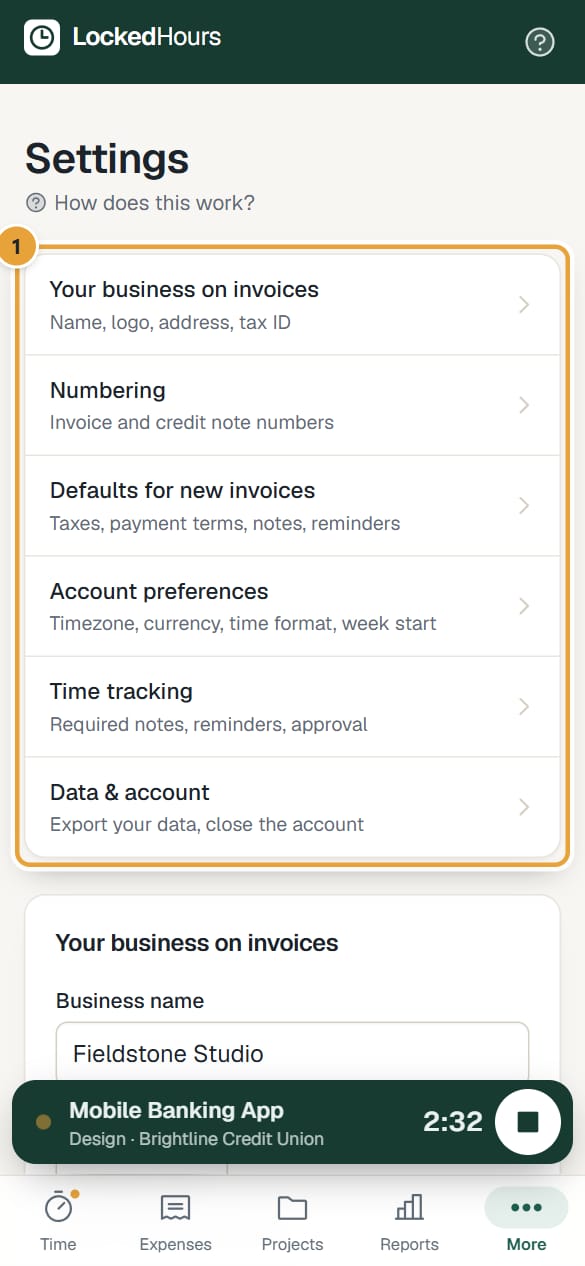
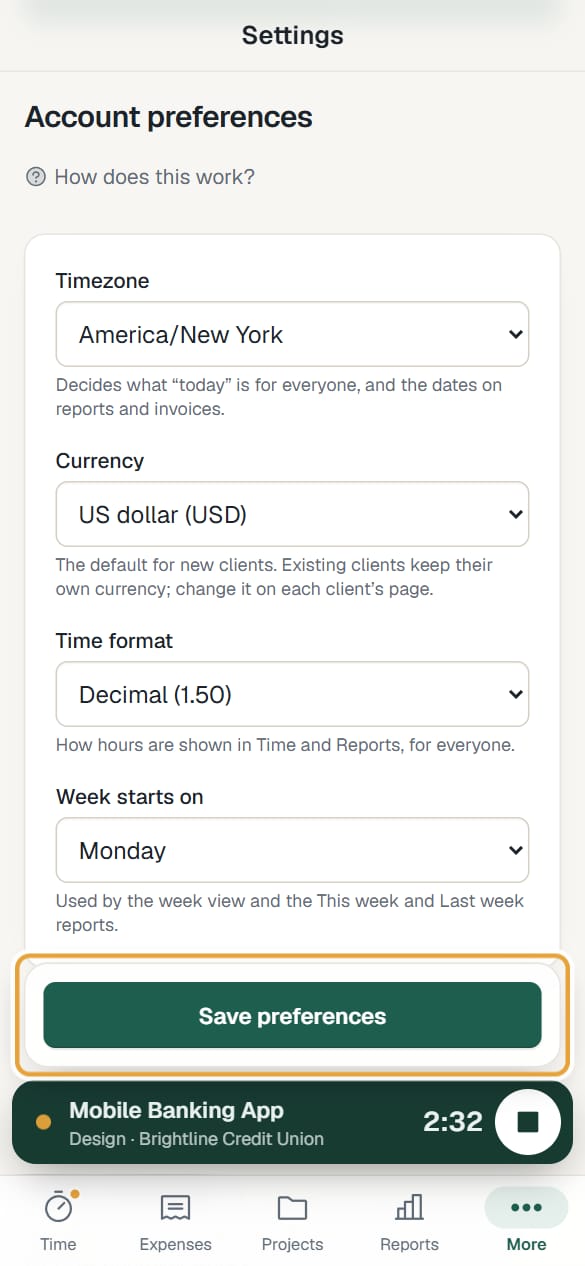
Settings starts with a list of its parts: Your business on invoices, Numbering, Defaults for new invoices, Account preferences, Time tracking and Data & account. Tap one to jump to it. Once you change something, its save button (Save settings, Save preferences or Save time tracking settings) stays at the bottom of the screen while you scroll, until you save.
 (opens the full-size image)
 (opens the full-size image)
Common problems
"Use a PNG or JPEG." / "Keep the logo under 290 KB."
Export the logo as PNG or JPEG and make it smaller (a 600 px wide image is plenty).
"Only admins can change these settings."
Ask an admin. Managers can create invoices but not change settings.
Didn’t find what you needed?
Ask in Help inside the app, or email [email protected]. We aim to reply within 2 business days.