Close your account (and change your mind)
Closing the account schedules the deletion of all its data in 30 days, for everyone on the team. Until then you can export it or cancel.
Who can do this: AdminsUpdated · 2 min read
Before you start
- Download your data first: Export all your data. After the deletion date nothing can be recovered.
Close the account
Step 1: Go to Settings and scroll to Data & account.
Step 2: Under Close account, click Close account….
Step 3: Type your account's name exactly as shown, then click Close account in 30 days.
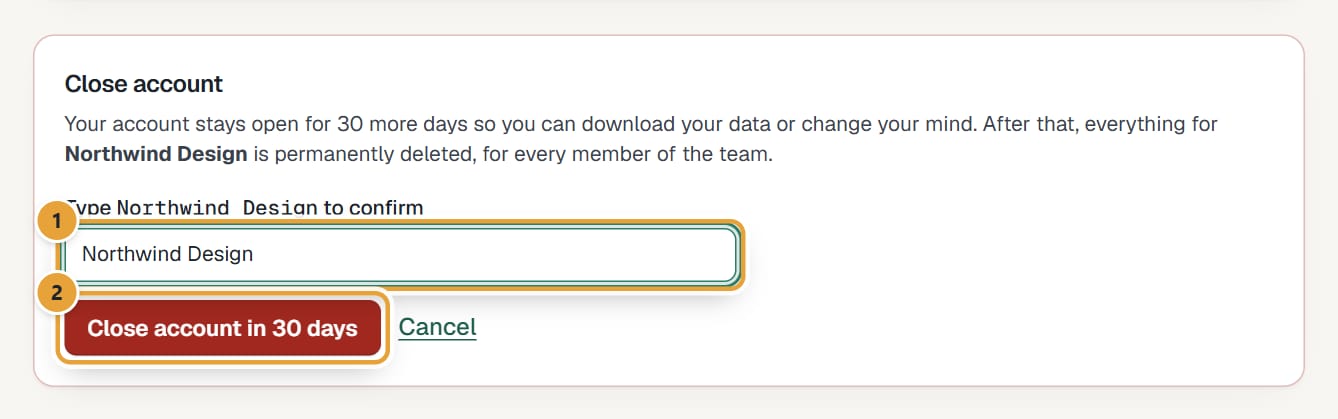 (opens the full-size image)
What happens
- A red bar at the top of every page says This account closes on … and all its data will be deleted. Admins see Keep my account next to it; others see Ask an admin if this is a mistake.
- Until that date everything works as usual, including the export.
- On that date, all the account's data is permanently deleted, for every member. Sign-in accounts left without any team are deleted too.
 (opens the full-size image)
Change your mind
Click Keep my account in the red bar, or in Settings → Data & account. The closure is cancelled and nothing is deleted.
Common problems
"Type “…” exactly to confirm."
Type the name exactly as shown in the label, including capitals and spaces.
I only want to leave a team, not close it
Ask an admin of that team to remove you; closing deletes the team's data for everyone. Removing a person isn't in the app yet, so the admin writes to us.
Didn’t find what you needed?
Ask in Help inside the app, or email [email protected]. We aim to reply within 2 business days.