Edit a draft invoice: lines, taxes, discount and dates
Until it's issued, everything on a draft can change: dates, terms, taxes, discount, notes and every line.
Who can do this: Admins and managersUpdated · 2 min read
Open the draft from Invoices (the Draft tab lists them) and click Edit draft. At the top it reminds you that the invoice gets its number when you issue it.
Dates, terms and taxes
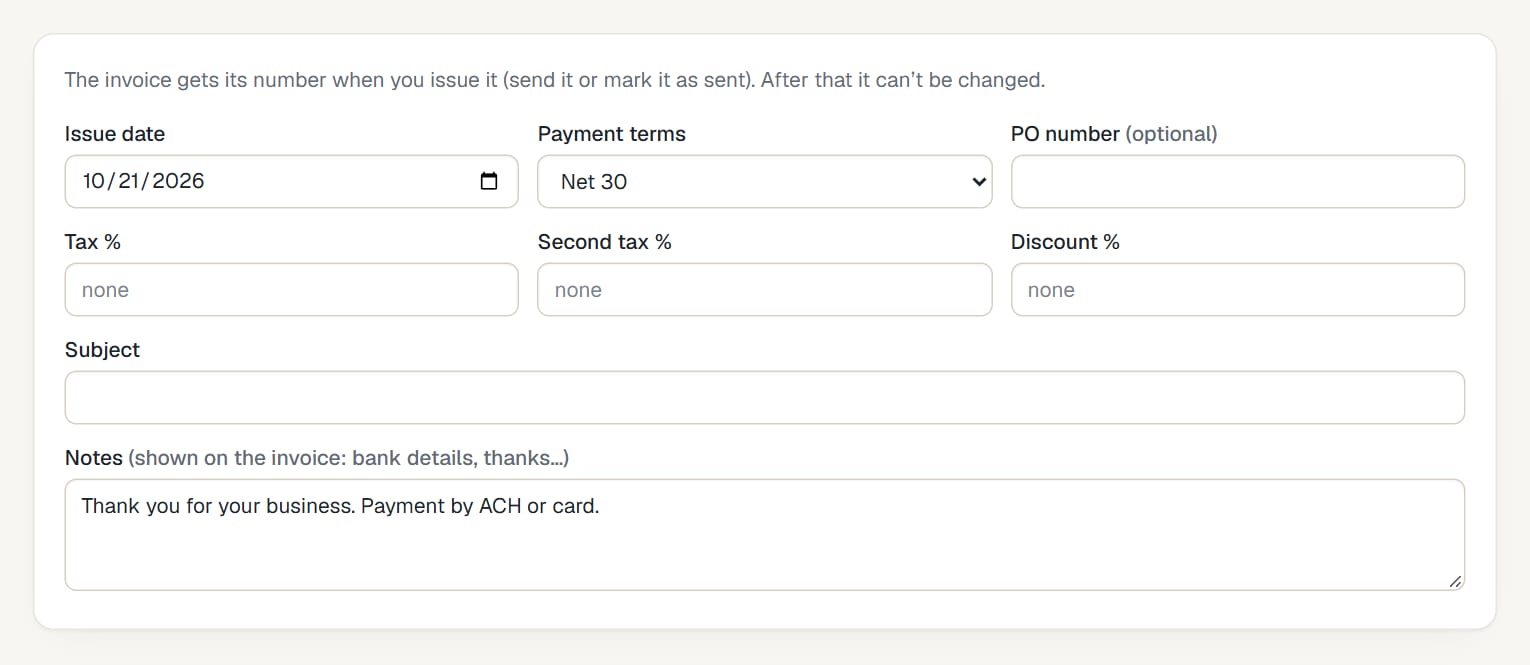 (opens the full-size image)
| Field | What it does |
|---|---|
| Issue date | The invoice date. It can't be earlier than the last invoice you issued (numbers and dates must go in order). |
| Payment terms | Upon receipt, Net 15/30/45/60, or Custom due date to pick the Due date yourself. |
| PO number | Your client's purchase order number, if they gave you one. |
| Tax % / Second tax % | Tax rates applied to the lines ticked under Tax / Tax 2. Empty means no tax. |
| Discount % | Taken off the subtotal before tax. |
| Subject | A short title, e.g. "Website redesign: October". |
| Notes | Printed on the invoice: bank details, thanks… |
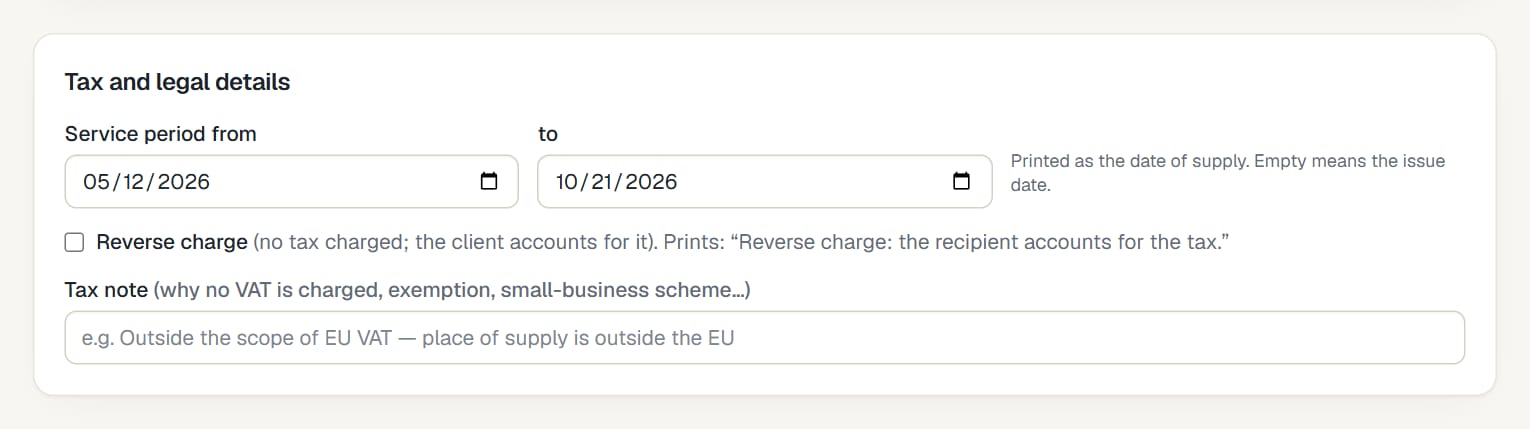
Tax and legal details
- Service period from … to: printed as the date of supply. Empty means the issue date.
- Reverse charge: for cross-border business clients (no tax charged). See Taxes, VAT and reverse charge.
- Tax note: why no VAT is charged, when that's the case.
- Exchange rate: only shown when your country requires VAT also in your national currency and the invoice is in another currency.
 (opens the full-size image)
Lines
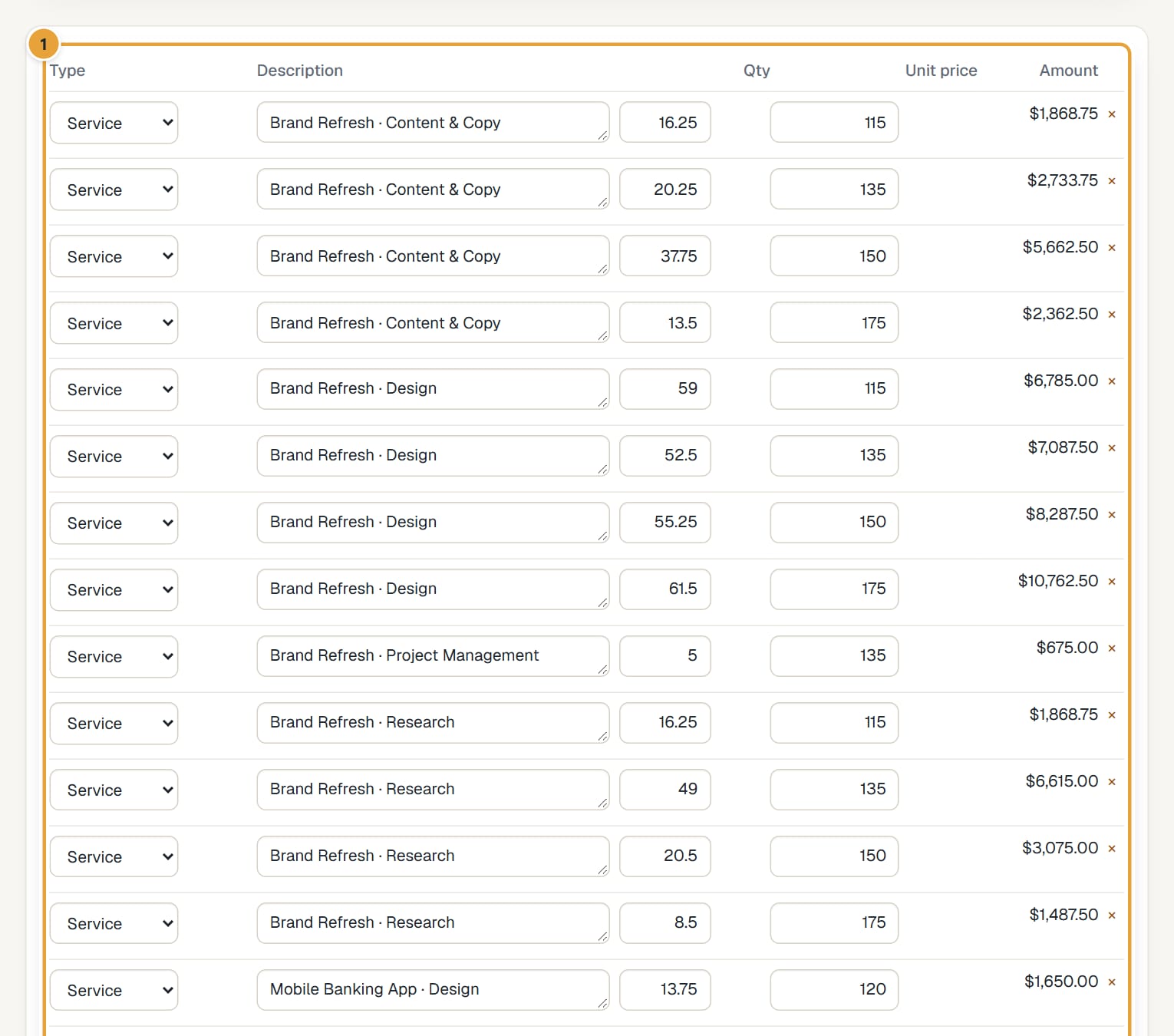
- Change any Description, Qty or Unit price; the amount and totals update as you type.
- Tick or untick Tax (and Tax 2) per line. These columns only appear once a tax % is set.
- Click × to remove a line, + Add line to add one.
 (opens the full-size image)
Click Save draft when you're done. You go back to the draft.
Common problems
"The service period ends before it starts."
Swap the two dates.
"Issued invoices can't be changed or deleted. Issue a credit note to correct it."
The invoice was already issued. See I can't edit an issued invoice.
There's no Edit draft button
The invoice is issued, was imported from Harvest, or was recorded as billed elsewhere. Those can't be edited.
Didn’t find what you needed?
Ask in Help inside the app, or email [email protected]. We aim to reply within 2 business days.