Issue and send an invoice, and share its link and PDF
Issuing gives the invoice its number and makes it final. Email it straight from LockedHours, or issue it and send the PDF yourself.
Who can do this: Admins and managersUpdated · 3 min read
Before you can issue
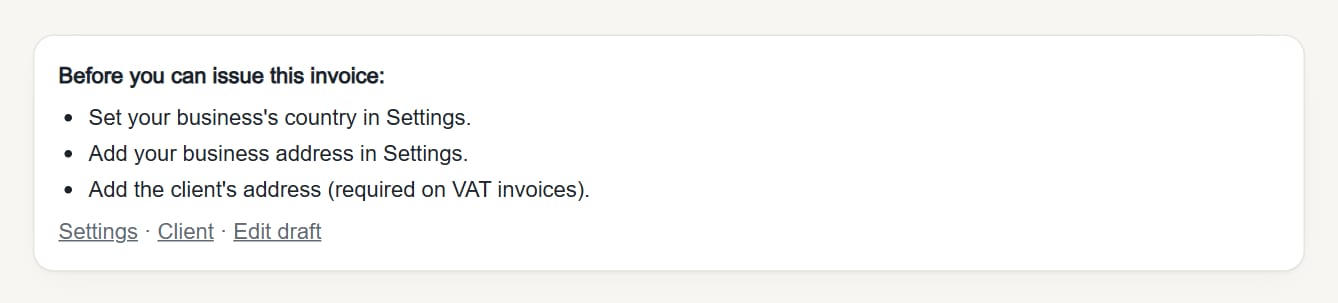
Open the draft. If something required is missing, a box says Before you can issue this invoice: and lists everything at once (your business's country and address, your tax number, the client's address and country…), with links to Settings, the Client and Edit draft. Fix them, come back, and the send options appear.
If your business's country isn't set yet, the list also includes the client's address and country, because most countries require them: the list doesn't grow after you set your country.
When the client has no country (clients imported from Harvest don't have one), you can set it right in the box: choose it under …'s country and click Save country. It's pre-filled with your business's country if you've set one; check it before saving. Nothing is saved until you click Save country, and it's saved on the client, so its next invoices have it too.
 (opens the full-size image)
Issue and send by email
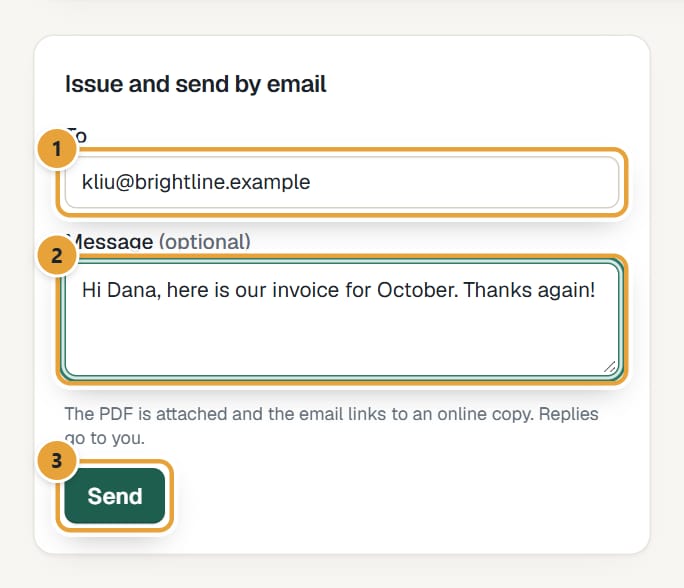
Step 1: On the draft, find Issue and send by email. To is filled in with the client's contacts; add or remove addresses, separated by commas (up to 10).
 (opens the full-size image)
Step 2: Optionally write a Message. Without one, the email says "Here is invoice … for …, due …".
Step 3: Click Send. The invoice gets its number, is marked open, and the email goes out. You'll see Sent to ….
The email comes from your business name, has the PDF attached and links to an online copy. When your client replies, the reply goes to your email address.
Issue without emailing
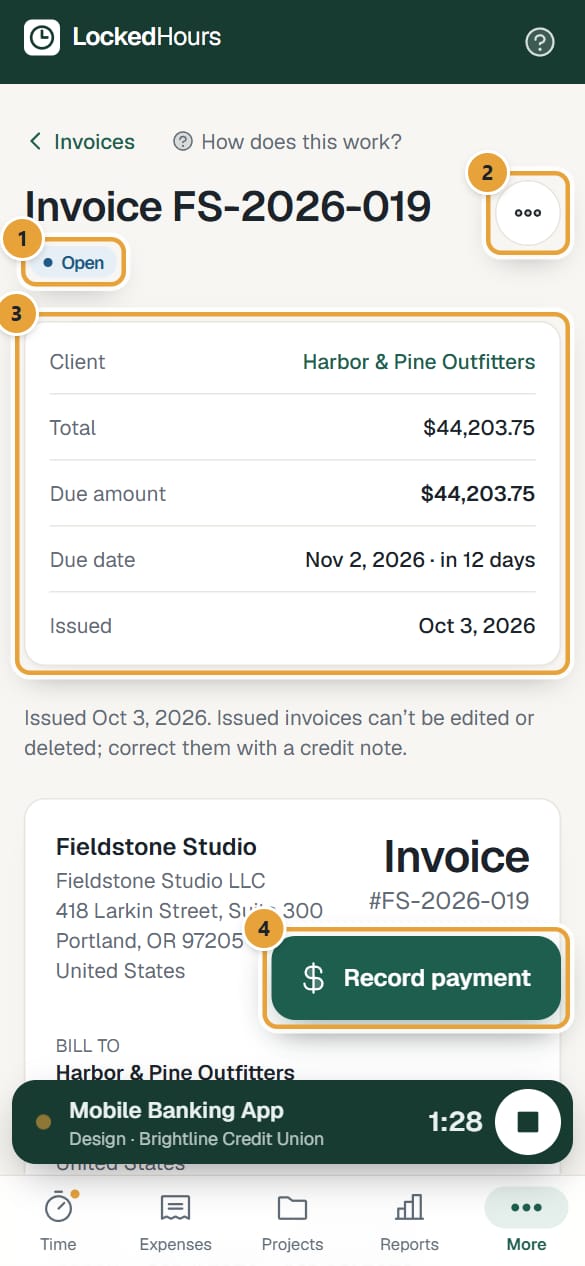
To send the invoice yourself (from your own mailbox or a client portal), click Issue without emailing at the top. It gets its number and becomes open. Then click Download PDF.
 (opens the full-size image)
After issuing
 (opens the full-size image)
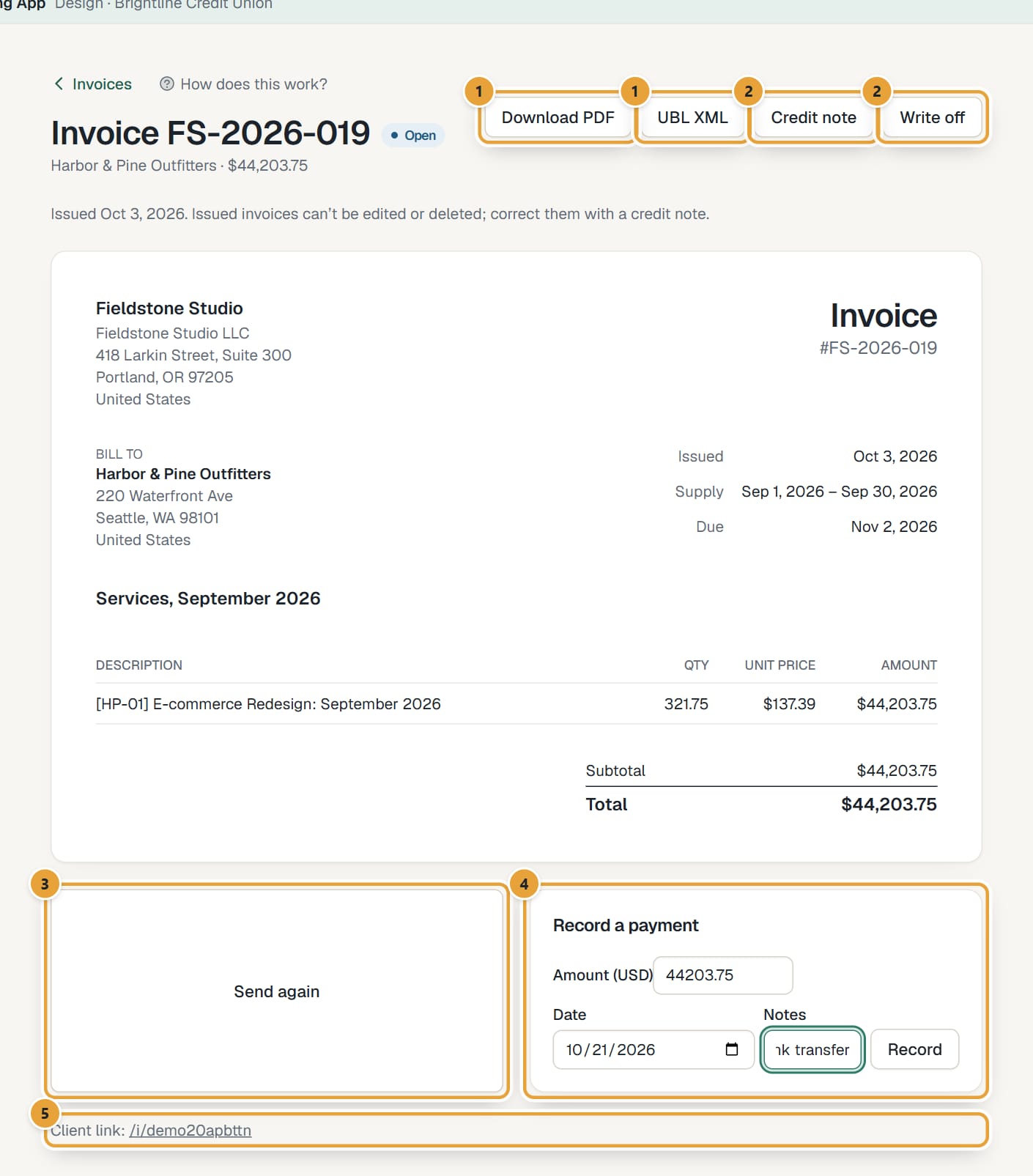
- Download PDF: the invoice as a PDF. Drafts have Pro forma PDF instead, marked Not a valid invoice.
- Client link at the bottom: an online copy of the invoice your client can open without an account, with a Download PDF button. Anyone with the link can see it, so share it only with the client.
- UBL XML: a structured e-invoice file (UBL 2.1, EN 16931) to upload to e-invoicing portals. It isn't offered for invoices with a second tax, and LockedHours doesn't send it over Peppol.
- Send again: email the issued invoice again, to the same or other addresses.
- The invoice's status: open until paid, overdue after its due date, paid, or closed (written off or fully credited).
Common problems
"The issue date can't be earlier than the last one issued…"
Invoices must be numbered in date order. Edit the draft and set the issue date to that date or later.
"Another invoice already has the number …"
Your number format produces a number that's already used (often after an import). Change the format or next number in Settings: Invoice numbering.
"One of the email addresses isn't valid."
Check for typos and separate addresses with commas.
The client didn't get the email
Ask them to check spam, then use Send again, or send the PDF or the client link yourself.
More issue errors
Didn’t find what you needed?
Ask in Help inside the app, or email [email protected]. We aim to reply within 2 business days.