Invite your team
Send an email invitation, choose whether the person is a member, manager or admin, and they join with one click. People imported from Harvest keep their history.
Who can do this: AdminsUpdated · 3 min read
Send an invitation
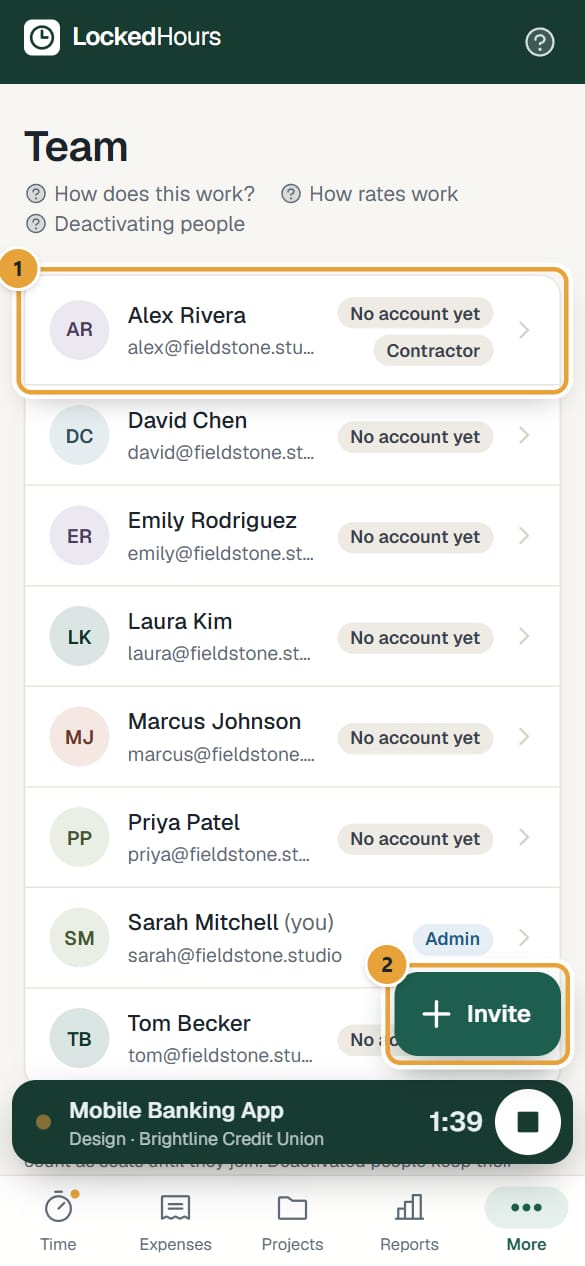
Step 1: Click Team in the top menu. On a phone: More → Team, then Invite at the bottom right of the screen (the form opens as a sheet, with the role as Member | Manager | Admin).
Step 2: Under Invite a teammate, type their work email.
If they were imported from Harvest, use the same email they had in Harvest: their imported time is then linked to their account when they join.
 (opens the full-size image)
Step 3: Choose the role: Member, Manager or Admin.
Members track their own time. Managers also manage projects, clients and invoices. Admins manage the team and billing. Full list: Roles and permissions.
Step 4: Click Send invite. You'll see Invitation sent to …, and the email appears under Pending invitations with its role and expiry date.
What your teammate does
Step 1: They get an email: "… invited you to … on LockedHours". They click Accept the invitation.
Step 2: If they aren't signed in, the page says Join … on LockedHours and asks them to sign in with the invited email. They click Continue and follow the email link.
Step 3: They click Accept and join, and land in your account.
The People list
- Access shows each person's role, No account yet for people imported from Harvest who haven't joined, or No access for someone deactivated who still has a LockedHours sign-in.
- Status is Active or Deactivated (in LockedHours or in Harvest). Admins see a Deactivate or Reactivate button on each row except their own: see Deactivate or reactivate a person.
- People without an account, and deactivated people, keep their time and don't count as seats.
- New people appear by the first part of their email (for example, anna for [email protected]).
- On a phone, People is a list with each person's initials, email and access (Admin, Manager, Member, No access or No account yet, plus Deactivated or Contractor). Tap someone to see their details; admins also change their rates there (Save rates) and find Deactivate or Reactivate.
 (opens the full-size image)
What happens next
- Make sure each person is ticked on the projects they work on, under the project's Team. Otherwise they won't see them when tracking time. See Create a project.
- Set their billable and cost rates: Set hourly and cost rates.
Common problems
"… is already on the team."
That email already belongs to someone in your account.
They didn't get the email
Ask them to check spam, then send the invitation again (it replaces the old one). See The invitation link doesn't work.
"This invitation is for …, but you're signed in as …"
They're signed in with another email. They click Sign out and continue on that page, then Continue, and sign in with the invited address.
Their Harvest history isn't linked
The invitation must go to the same email as their Harvest profile. Write to us if their email changed.
Didn’t find what you needed?
Ask in Help inside the app, or email [email protected]. We aim to reply within 2 business days.