See a project's spend over time
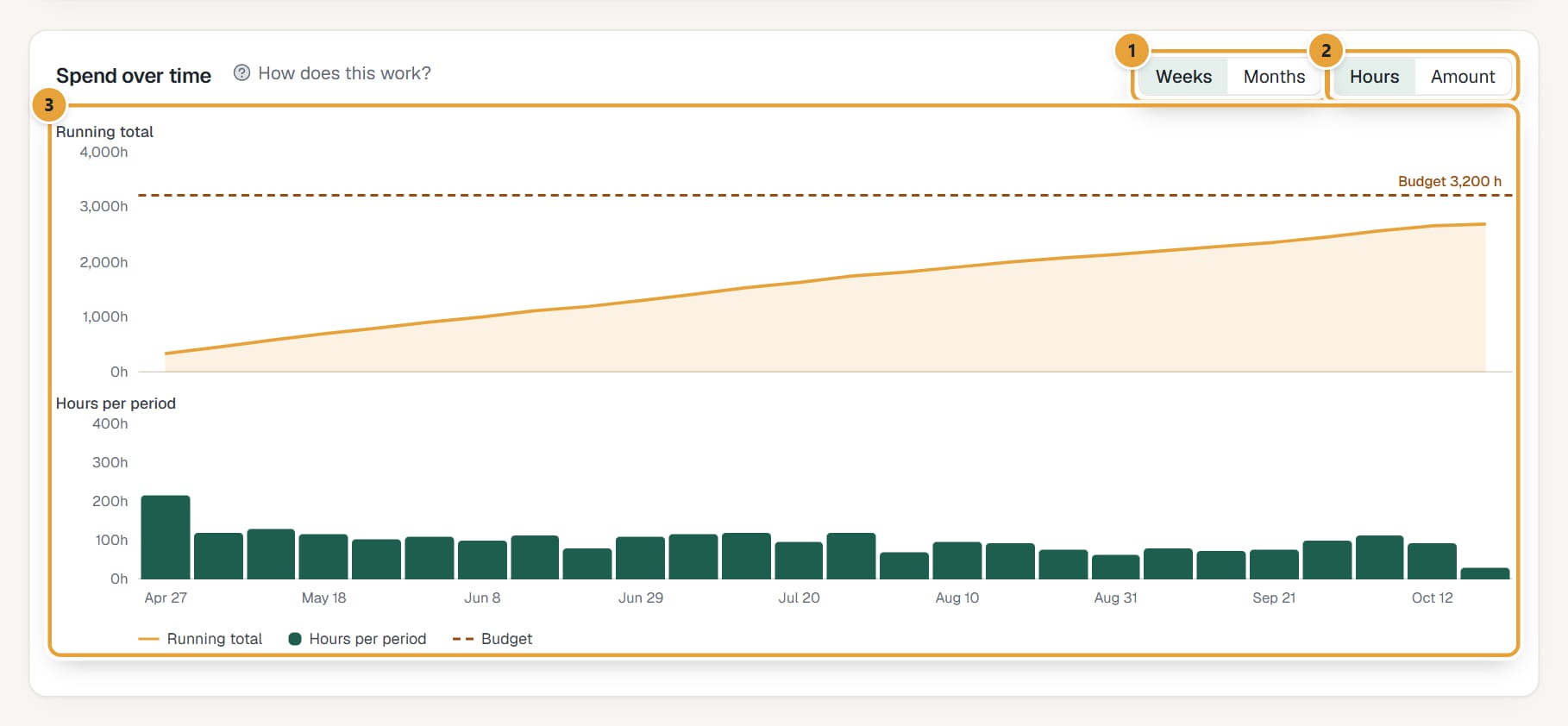
On every project page, a chart shows how hours (and, for managers, the billable amount) build up week by week or month by month against the budget.
Who can do this: Everyone who can open the project; amounts for admins and managersUpdated · 2 min read
Open a project from Projects and look at the Spend over time card, under Budget.
 (opens the full-size image)
- Each bar is one period: click Weeks (the last 26) or Months (the last 24). Weeks start on your account's week start day.
- The line is the Running total: everything tracked on the project up to that period, including time before the first bar shown.
- The dashed Budget line shows the project's budget when it's in the same unit as the chart: hours budgets on Hours, fees budgets on Amount. Otherwise a line under the chart says which to pick.
- Budgets that reset every month are drawn per month: the line marks the monthly budget, the bars show each month, and there's no running total. Pick Months to see it.
- Admins and managers can switch between Hours and Amount (billable hours × their billable rates, in the client's currency). Projects with a fees budget open on Amount.
- Hover over a bar for its exact figures.
Didn’t find what you needed?
Ask in Help inside the app, or email [email protected]. We aim to reply within 2 business days.