Set project budgets and budget alerts
Give a project a budget in hours or fees, see how much is used on the project and in the Budgets report, and get an email before it runs out.
Who can do this: Admins and managersUpdated · 2 min read
Set a budget
Step 1: Open the project and click Edit (or set it while creating the project).
Step 2: Under Budget, choose a Budget type.
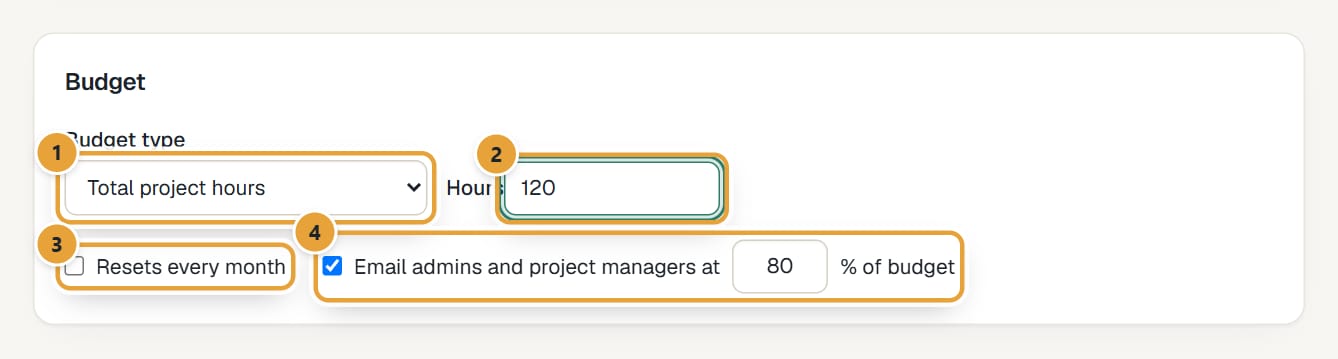 (opens the full-size image)
Step 3: For Total project hours type the Hours; for Total project fees type the Amount. For per-task and per-person budgets, type each one in the Budget column of the Tasks or Team section.
Step 4: Tick Resets every month for retainers and monthly plans: the budget then only counts the current month.
Step 5: Leave Email admins and project managers at ticked and set the percentage (80 by default).
Step 6: Click Save project.
| Budget type | Counts |
|---|---|
| Total project hours | All hours on the project. |
| Total project fees | The billable amount of all hours (hours × rate), plus the project's expenses if the budget includes them. |
| Hours per task | Hours against the sum of the task budgets. |
| Fees per task | Billable amount against the sum of the task budgets. |
| Hours per person | Hours against the sum of the person budgets. |
Follow the budget
- The project page's Budget card (with (this month) for monthly budgets) shows used of total and the percentage. The bar turns orange once it reaches the alert percentage.
- Under it, Spend over time charts the hours or amount per week or month against the budget line. See See a project's spend over time.
- The Projects list shows a budget bar next to each project, or No budget.
- Reports → Budgets lists every active project with a budget, most used first, with what's Remaining (in red when over).
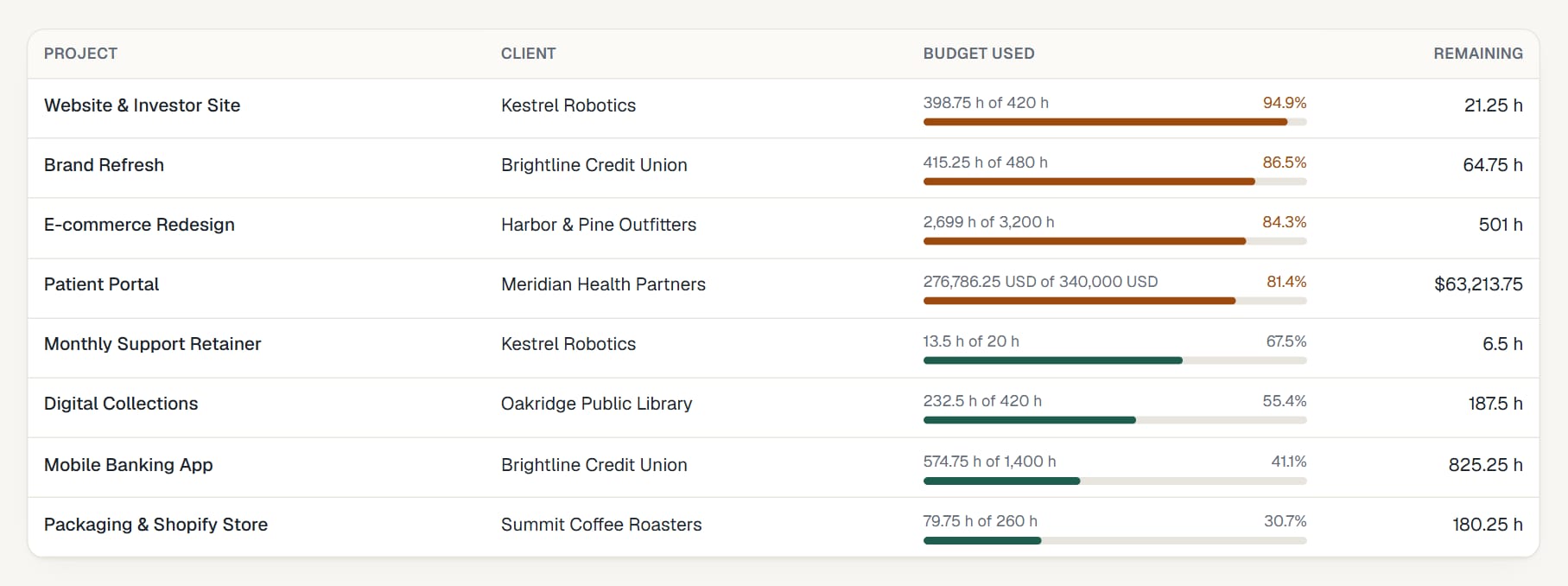 (opens the full-size image)
Budget alert emails
- When time tracked in LockedHours takes the project to the alert percentage, every admin and the project's Project managers get an email: "… has used 82% of its budget", with a link to the project.
- It's sent once per project, or once per month for budgets that reset every month.
- Untick Email admins and project managers at to stop alerts for a project.
Common problems
The budget bar doesn't appear
The budget total is zero or empty. For per-task or per-person budgets, at least one task or person needs a budget.
Nobody got the alert
Check the alert is ticked, and that the email went to admins and to the people ticked Project manager. Alerts are sent once: if the project was already over the percentage when you set the budget, the next tracked entry triggers it.
A fees budget doesn't move
Fees count billable hours with a rate. Hours on non-billable tasks or without a rate don't count. See How hourly rates work.
Didn’t find what you needed?
Ask in Help inside the app, or email [email protected]. We aim to reply within 2 business days.