Correct an issued invoice with a credit note
Issued invoices are final. To correct or cancel one, issue a credit note that refers to it: in full, or for part of it.
Who can do this: Admins and managersUpdated · 2 min read
Step 1: Open the issued invoice and click Credit note (on a phone, under ⋯ next to the title).
Step 2: A draft credit note opens, titled Credit note for invoice …. It copies every line with a negative quantity, so by default it cancels the whole invoice.
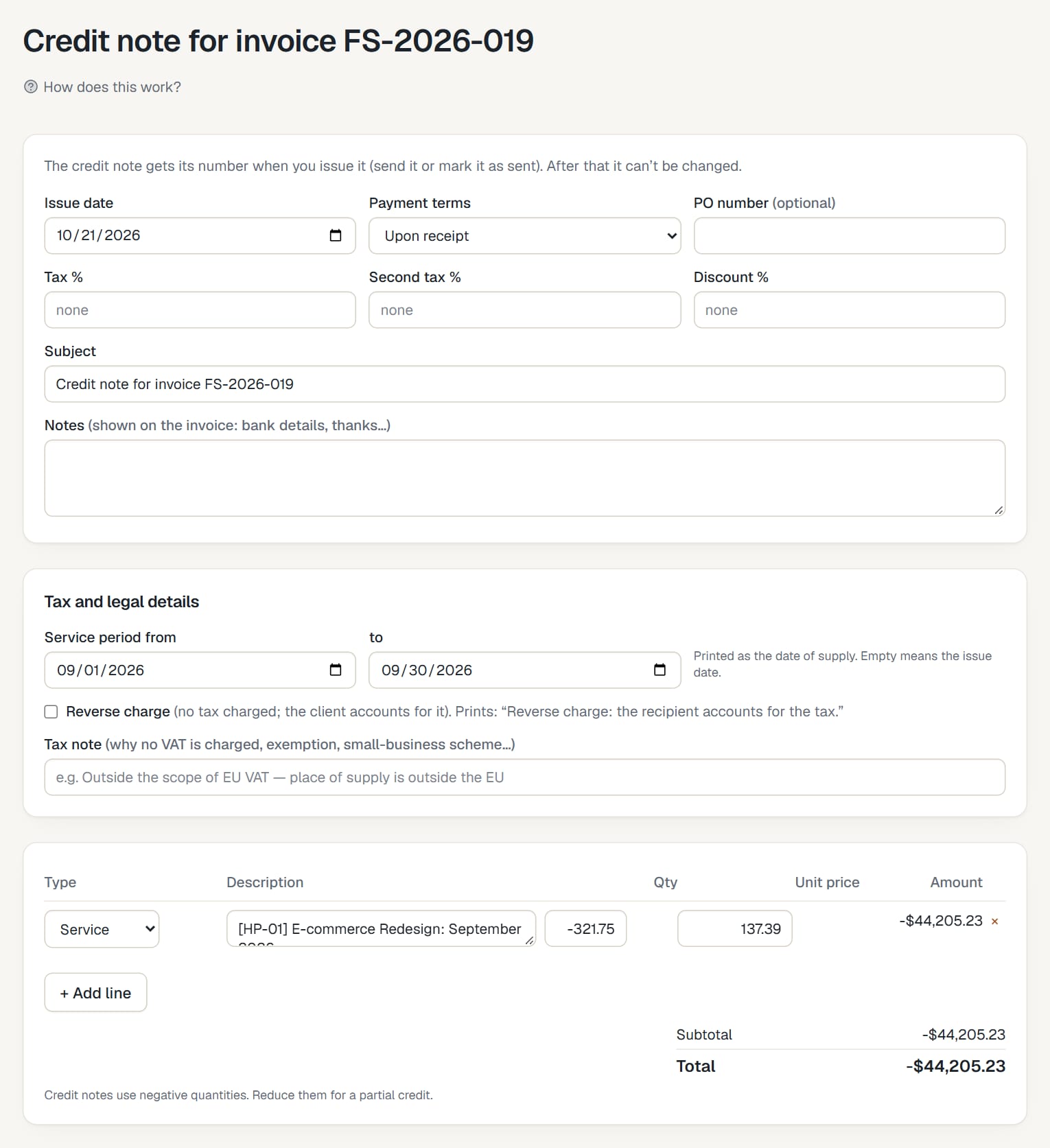 (opens the full-size image)
Step 3: For a partial credit, reduce the quantities or remove lines. The total must stay negative, and can't be more than what's left on the invoice.
Step 4: Click Save credit note.
Step 5: Issue it the same way as an invoice: Issue and send by email, or Issue without emailing. It gets a number from the credit note series (CN-1, CN-2… by default).
What it changes
- The original invoice lists it under Credit notes, and the credit note says corrects invoice ….
- What's due on the invoice goes down by the credit. If the credit covers everything left, the invoice is closed.
- A credit note that cancels the whole invoice releases its hours: they're unlocked and back in the Uninvoiced report, so you can invoice them again correctly.
- Credit notes are listed in Invoices, marked Credit note.
You can also credit imported Harvest invoices this way.
Common problems
"A credit note can't credit more than what's left on the invoice"
Payments and earlier credit notes already cover part of it. Reduce the quantities.
"A credit note's total must be negative: use negative quantities."
Keep the minus sign on the quantities.
"This invoice is already fully credited."
There's nothing left to credit.
There's no Credit note button
Only issued invoices with something left to credit have it. Drafts can be edited or deleted instead.
Didn’t find what you needed?
Ask in Help inside the app, or email [email protected]. We aim to reply within 2 business days.