The Expenses report
The Expenses tab in Reports totals expenses by category, project or person, split into billable, invoiced and not invoiced, with every expense listed below.
Who can do this: Everyone (members see only their own expenses, without amounts)Updated · 2 min read
Step 1: Go to Reports, choose the period and filters, and click the Expenses tab.
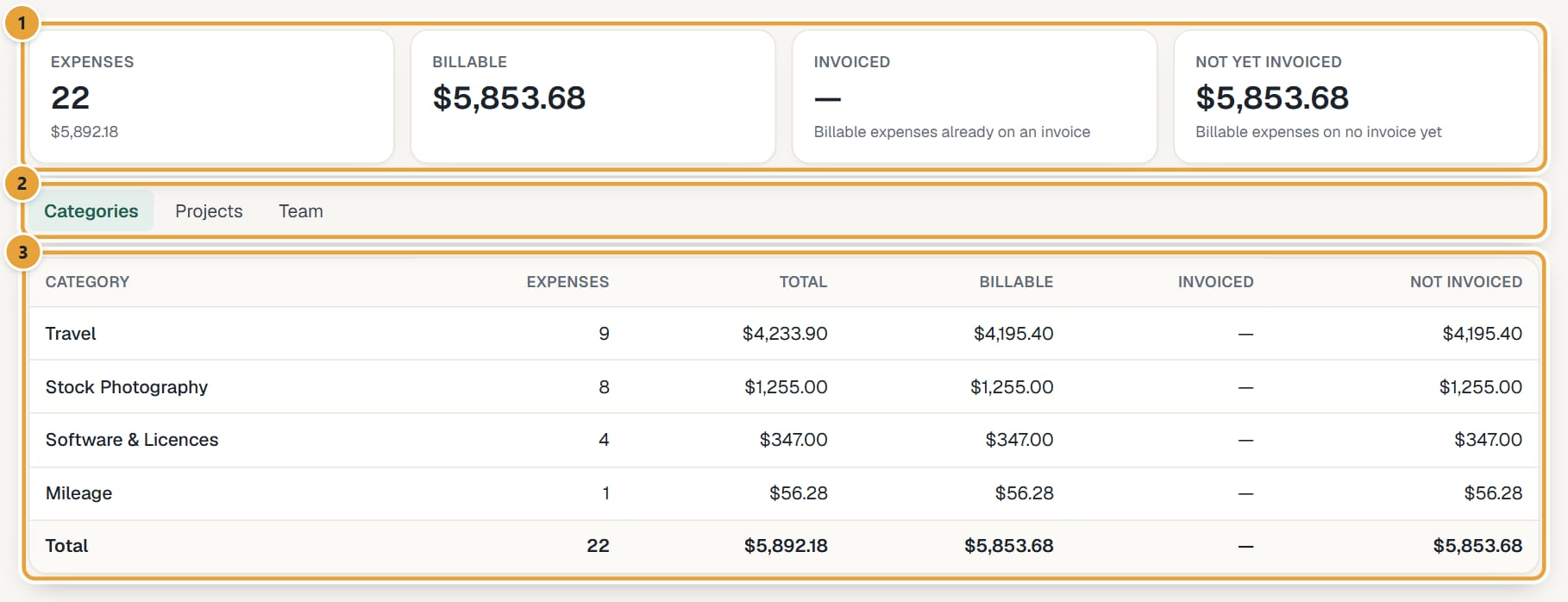
Step 2: Read the totals at the top: Expenses (how many, and their total), Billable, Invoiced and Not yet invoiced.
 (opens the full-size image)
Step 3: Group the table by Categories, Projects or Team. Each row shows Expenses, Total, Billable, Invoiced and Not invoiced.
Step 4: Scroll down to Every expense for one row per expense, with its status and whether it has a receipt. Open receipts from the Expenses page.
Step 5: Click Export CSV to download every expense in the period.
The Billable filter applies (Billable only, Non-billable only), as do Client, Project and Person.
Members see the Expenses tab with their own expenses: how many and what they were, but no amounts, as in every report. Their amounts are on the Expenses page.
Didn’t find what you needed?
Ask in Help inside the app, or email [email protected]. We aim to reply within 2 business days.