Add expenses and receipts
Everyone records what they spend on a project, with the receipt attached. Billable expenses can then go on the client's invoice with the hours.
Who can do this: Everyone on the team (members see only their own expenses)Updated · 3 min read
Add an expense
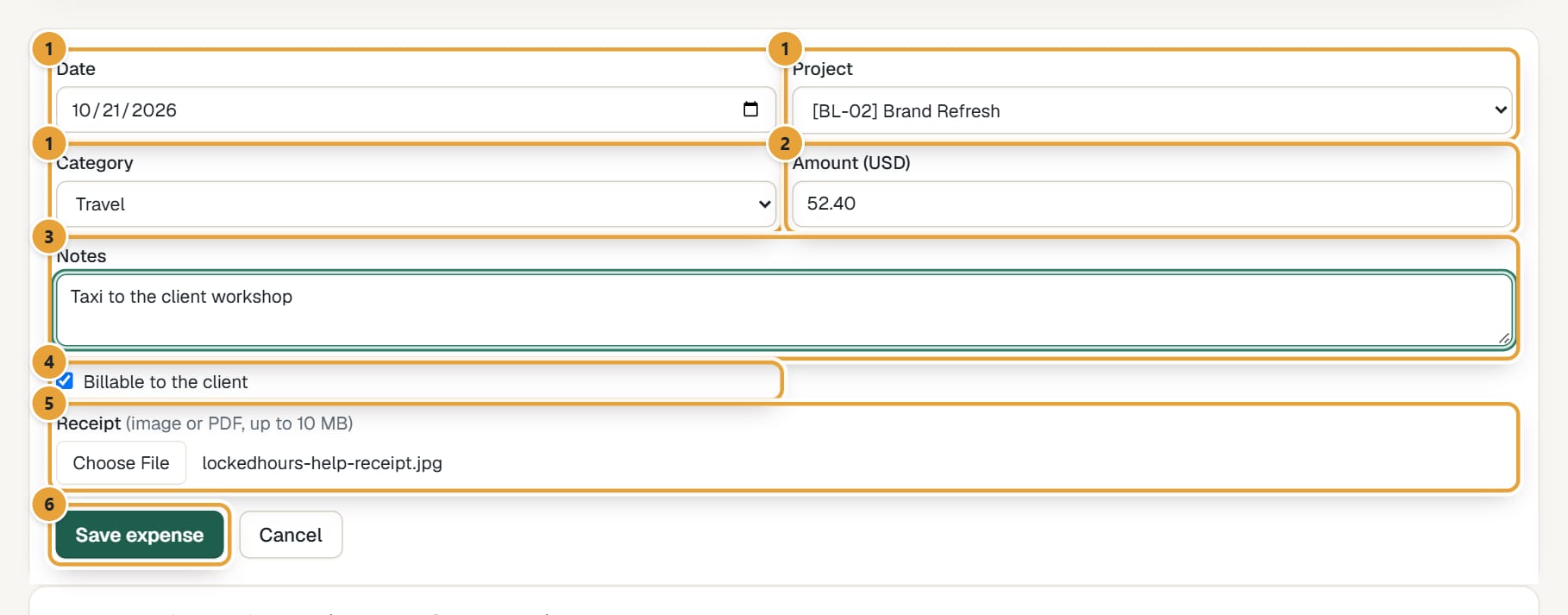
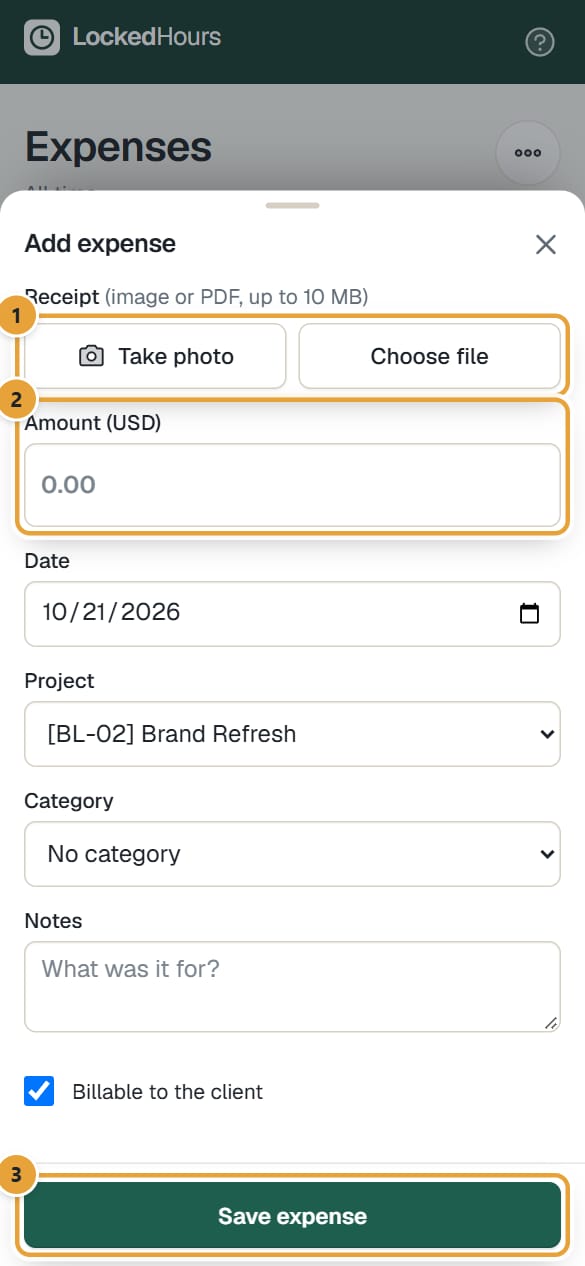
Step 1: Click Expenses in the top menu, then + Add expense. On a phone, tap Expenses at the bottom, then Add expense at the bottom right: the form opens as a sheet, with the receipt and the amount first.
Step 2: Fill in Date, Project and Category.
Category is optional (No category). Admins and managers choose the categories in Expense categories.
 (opens the full-size image)
Step 3: Enter the Amount, in the currency of the project's client (it's shown next to the label).
If the category has a unit price (for example Mileage at 0.67 per mile), you see Units instead: type how many miles, kilometres or days, and LockedHours works out the amount below the field.
Step 4: Add Notes so whoever invoices it knows what it was for.
Step 5: Leave Billable to the client ticked if the client pays it back. On a non-billable project it's always off.
Step 6: Optionally attach the Receipt: a photo (JPEG, PNG, WebP, GIF or HEIC) or a PDF, up to 10 MB. On a phone, tap Take photo to open the camera or Choose file to pick a photo or PDF; you see a preview, and Remove takes it off again.
Step 7: Click Save expense. It appears in the list with its receipt, amount and a Billable or Non-billable label.
 (opens the full-size image)
See your expenses
 (opens the full-size image)
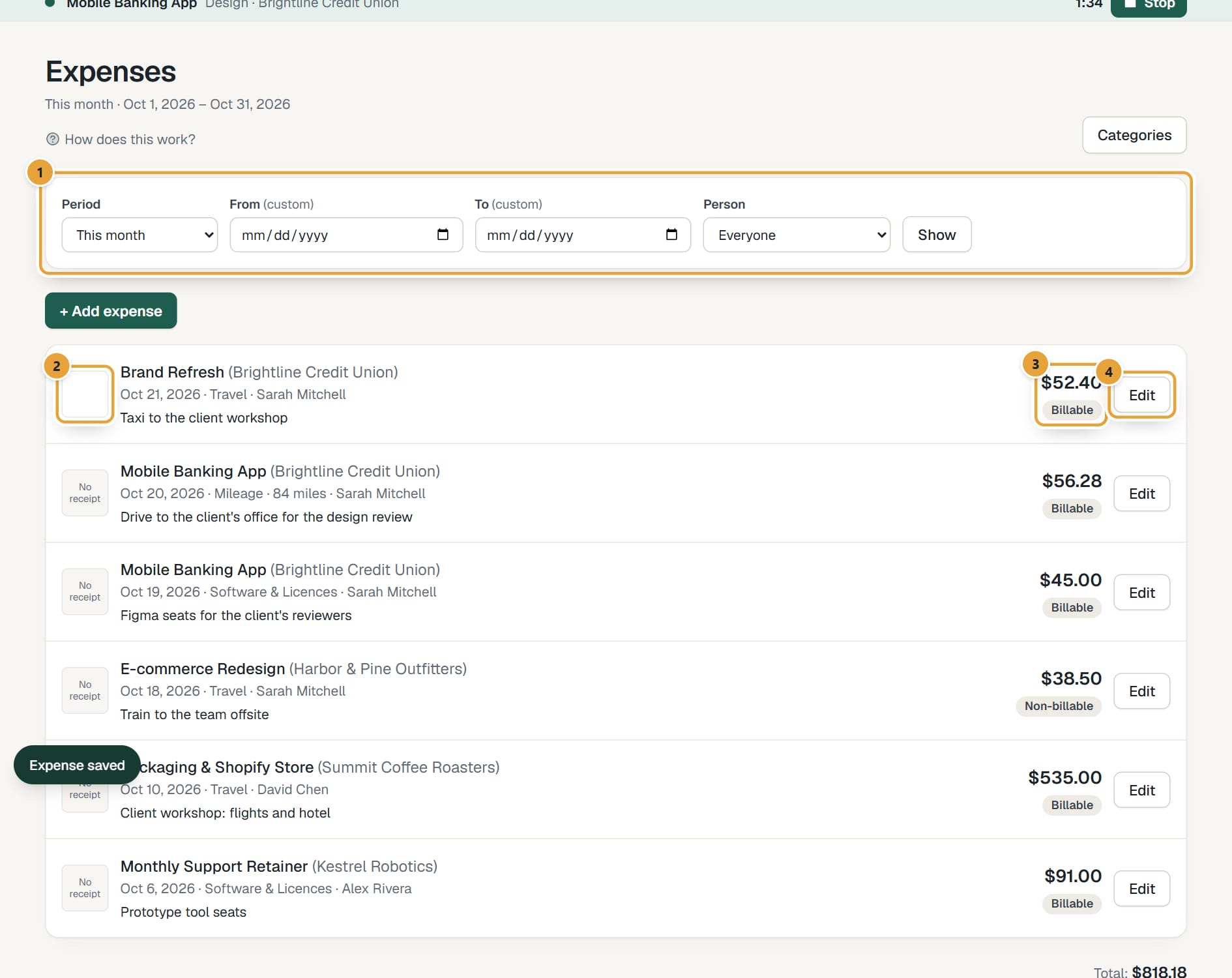
The page opens on This month. Change the Period (or pick Custom with From and To) and click Show. Admins and managers see everyone's expenses and can narrow them down with Person; members see only their own. The Total is at the bottom, per currency.
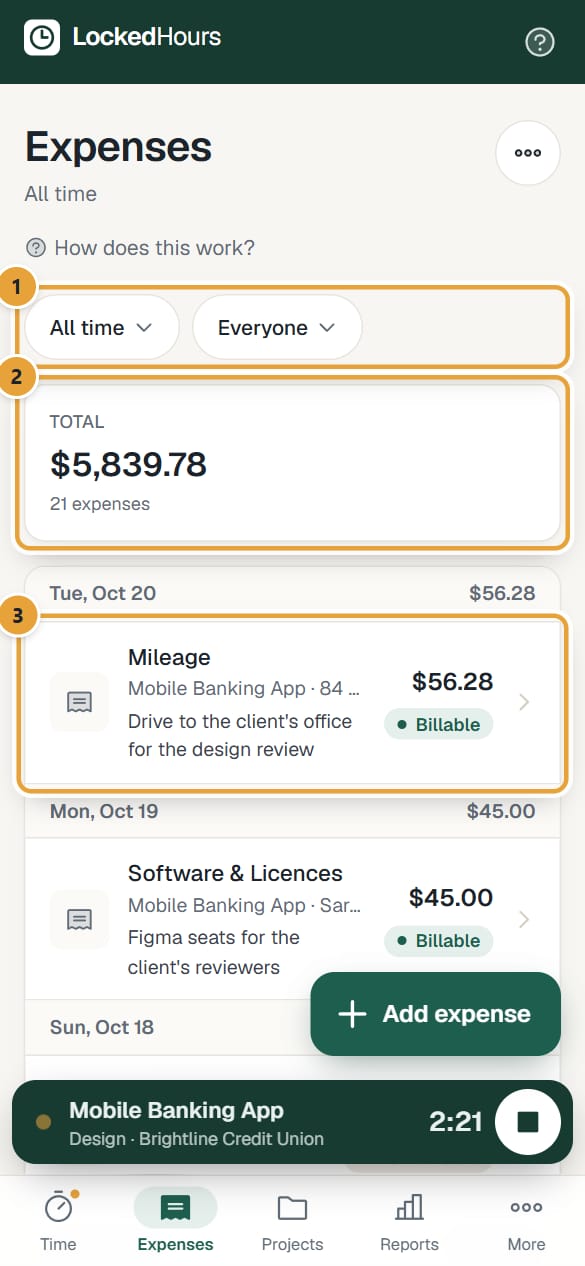
On a phone, the filters are two buttons at the top: the period (This month) and, for admins and managers, the person (Everyone). Tap one to change it: the list updates as soon as you pick a period or a person (for Custom, set From and To and tap Show). Under them, Total adds up the period with the number of expenses, and the list is grouped by date, each day with its total. Tap an expense to edit it. Categories (admins and managers) is under the ⋯ button.
 (opens the full-size image)
Click a receipt's thumbnail (or PDF) to open it in a new tab. Receipts are private: only the person who added the expense and the account's admins and managers can open them.
Edit or delete an expense
Step 1: Click Edit on the expense (on a phone, tap the expense).
Step 2: Change what you need and click Update. To replace the receipt, choose a new file; to take it off, tick Remove receipt.
Step 3: To delete it (and its receipt), click Delete and confirm.
Admins and managers can edit and delete anyone's expenses; members only their own.
What happens next
- Billable expenses that aren't invoiced yet show in the Uninvoiced report and are added as lines when you create an invoice from tracked time with Include billable expenses ticked.
- Every expense counts as cost in the Profitability report, and in fee budgets that include expenses (see Project budgets).
- The Expenses tab in Reports totals them by category, project or person. See The Expenses report.
Common problems
“The receipt must be an image … or a PDF”
LockedHours checks the file itself, not its name. Save it again as JPEG or PDF (on a Mac: Preview → File → Export) and attach it again.
“The receipt is larger than 10 MB”
Take the photo at a lower resolution, or compress the PDF, and try again.
“The expense was saved, but the receipt didn't upload”
The expense is there without its receipt. Click Edit, choose the file again and click Update.
I can't find the project
Members only see active projects they're assigned to. Ask an admin to add you to the project.
There's no **Edit** button
The expense is on an invoice (Locked), or it's someone else's and you're a member. On a phone, those expenses don't open when tapped; the receipt icon on the right opens the receipt.
Didn’t find what you needed?
Ask in Help inside the app, or email [email protected]. We aim to reply within 2 business days.