Read the import verification report
When an import finishes, LockedHours checks its figures against Harvest's own reports. Here's what each line means and what to do when something differs.
Who can do this: AdminsUpdated · 2 min read
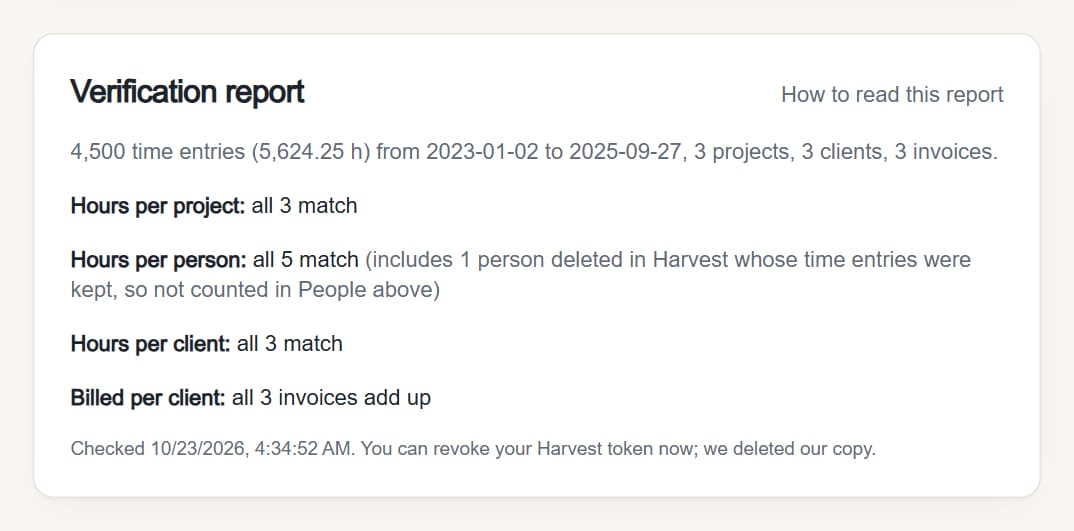
Find the report on the import page right after the import, through the link in the email we send when it's done, or from your home page (Latest import).
 (opens the full-size image)
What each line means
| Line | What was checked |
|---|---|
| First line (totals) | How many time entries and hours were imported, the date range they cover, and how many projects, clients and invoices. |
| Hours per project | The total hours of every project in LockedHours against Harvest's time report for the same project. |
| Hours per person | The same, per person. It can count one or more people than People in the progress bars: people deleted in Harvest whose time entries are still there. They don't appear in Harvest's user list, but their hours are imported and checked. The line then says, for example, (includes 1 person deleted in Harvest whose time entries were kept, so not counted in People above). |
| Hours per client | The same, per client. |
| Billed per client | The total invoiced to each client, per currency, against Harvest's invoices. |
| Count lines (only when they differ) | For example "Projects: Harvest reported 120, imported 119". |
Each check either says all N match (or all N invoices add up) or lists what differs, with Harvest's figure next to LockedHours'. Up to 20 differences are listed per check.
"Harvest reports are not available to this token"
Some Harvest plans or tokens can't open Harvest's reports. Those checks are then skipped, and the line says so. Everything was still imported; it just couldn't be compared.
If something differs
Step 1: Note which project, person or client differs and by how much.
Step 2: In Harvest, open the same project's time report for all time and compare it with Reports in LockedHours (period All time, filtered by the same project). See Time and detailed reports.
Step 3: Check whether the time was changed in Harvest after the import started. Entries added or edited in Harvest during or after the import aren't in LockedHours.
Step 4: If you can't explain it, ask us in Help (top of the app) and include the report's lines. We investigate every mismatch.
More causes and checks: The numbers don't match Harvest.
Didn’t find what you needed?
Ask in Help inside the app, or email [email protected]. We aim to reply within 2 business days.