Import your Harvest account, step by step
Bring your clients, projects, rates, people, every time entry and every invoice across from Harvest. Big accounts can take longer; we email you when it's done. Nothing changes in Harvest.
Who can do this: Admins (of LockedHours, and Administrator in Harvest)Updated · 4 min read
Before you start
- You're an Admin in LockedHours, or you're signing up now (the import creates your account).
- You can sign in to Harvest as an Administrator. A token from a Manager or Member can't read every project, rate and invoice, and the import refuses it.
- A few minutes of your time. Big accounts can take longer to import, but you can close the page while it runs: we email you when it's done.
1. Open the importer
New accounts: choose Import from Harvest in the welcome form. Existing accounts: click the LockedHours logo to go home and click Import from Harvest (or Import in the first-steps checklist). The page is called Import from Harvest.
2. Create a token in Harvest
LockedHours reads your Harvest account through a personal access token: a long code that lets us read (never change) your data. You create it in Harvest ID, Harvest's account settings.
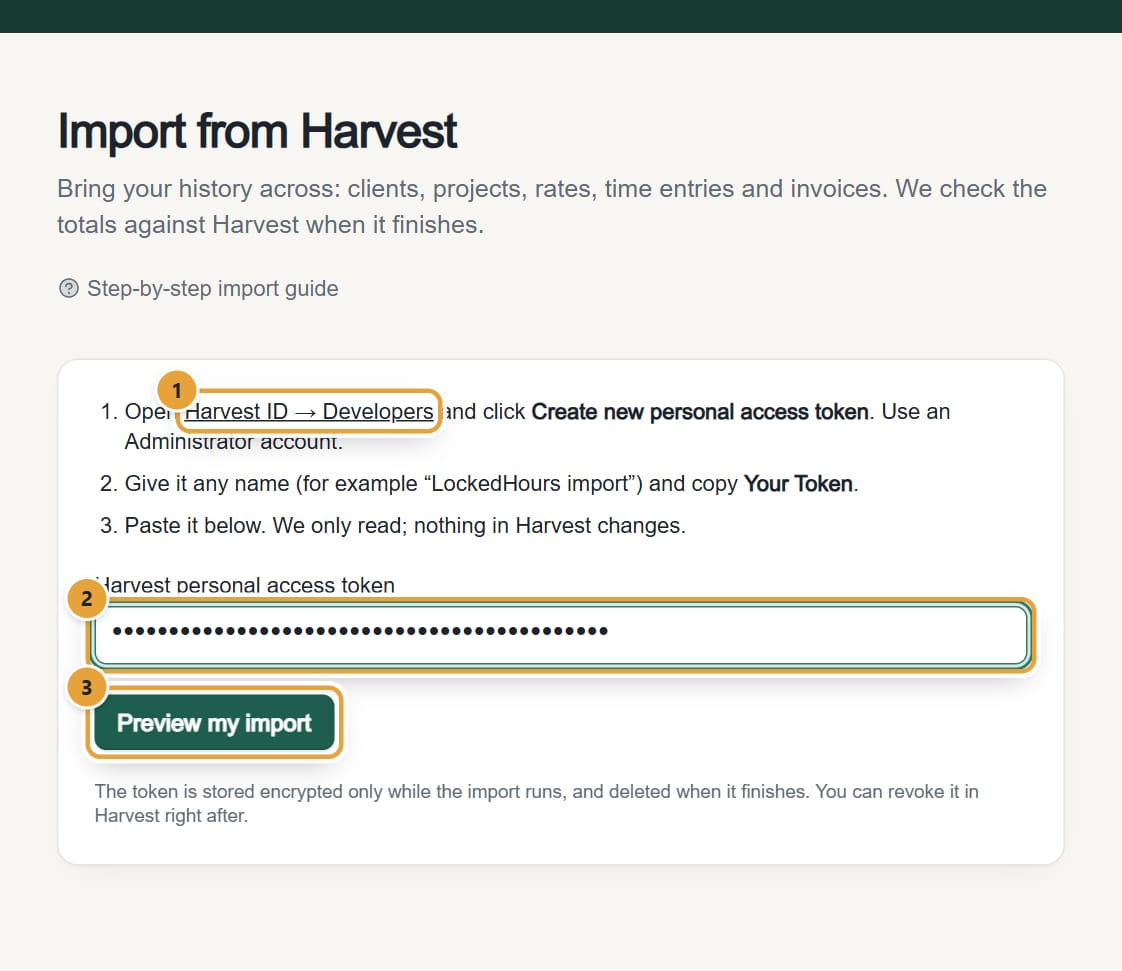
Step 1: On the import page, click the Harvest ID → Developers link. It opens Harvest's developer page in a new tab (sign in to Harvest if asked).
 (opens the full-size image)
Step 2: In Harvest, click Create new personal access token.
Step 3: Give it any name, for example LockedHours import, and create it.
Step 4: Harvest shows the token under Your Token. Copy all of it. It's a long string that starts with a number, then .pt.
More detail, including what to do if you don't see the Developers page: Create a Harvest personal access token.
3. Preview what comes across
Step 1: Back in LockedHours, paste the token into Harvest personal access token and click Preview my import.
The button says Checking with Harvest… for a few seconds. Nothing is imported yet.
Step 2: If your Harvest login has access to more than one Harvest account, you'll see Which Harvest account? Pick the right one and click Continue.
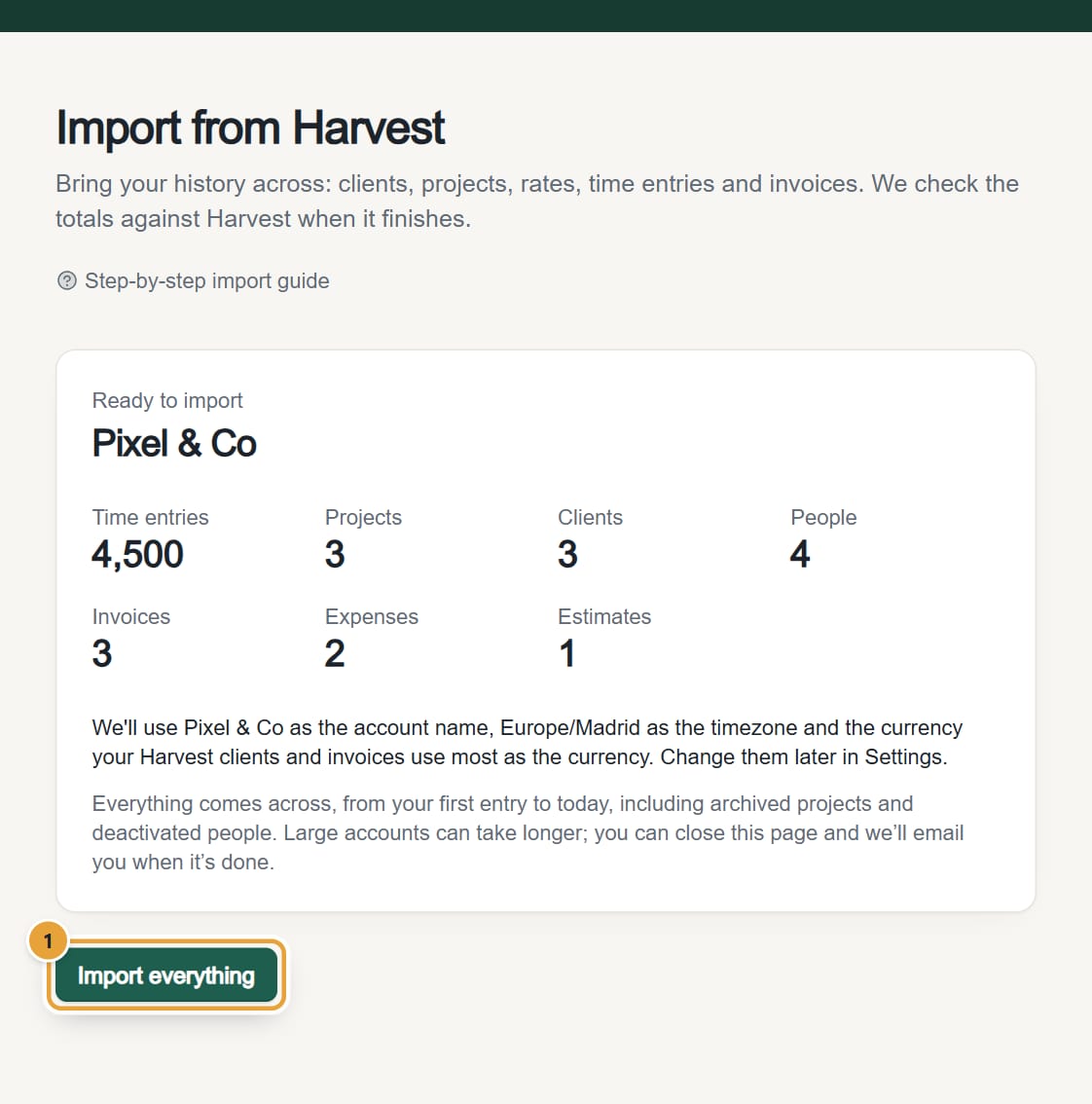
Step 3: Check the preview. Under Ready to import you see your Harvest account's name and how many Time entries, Projects, Clients, People, Invoices, Expenses and Estimates it has. A dash (—) means Harvest didn't report a count for that item.
 (opens the full-size image)
Step 4: Under the counts, one line says which account name, timezone and currency LockedHours will use.
If you filled in the welcome form, it says We'll keep your account name, timezone and currency (…): the import doesn't change them. If you went straight to the importer, it uses your Harvest company name, your Harvest timezone and the currency your Harvest clients and invoices use most. Either way you can change them later in Settings.
4. Import everything
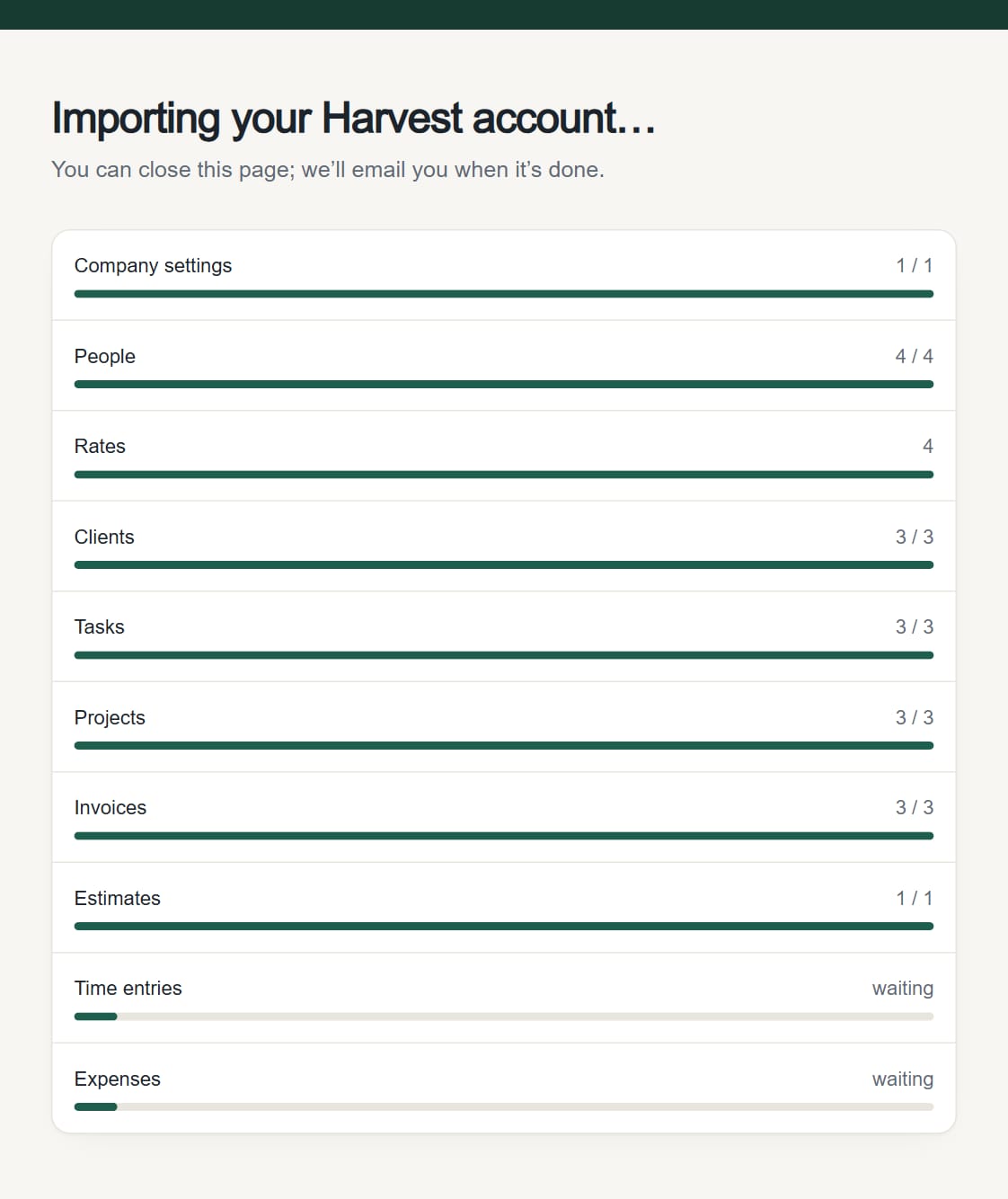
Step 1: Click Import everything. The page changes to Importing your Harvest account… with a progress bar for each part: Company settings, People, Rates, Clients, Tasks, Projects, Invoices, Estimates, Time entries and Expenses.
 (opens the full-size image)
Step 2: Wait, or close the page. The import keeps running on our side, and we email you when it finishes.
A group that says not available in this account was skipped because your Harvest account doesn't use it (for example, estimates). That's normal.
5. Check the verification report
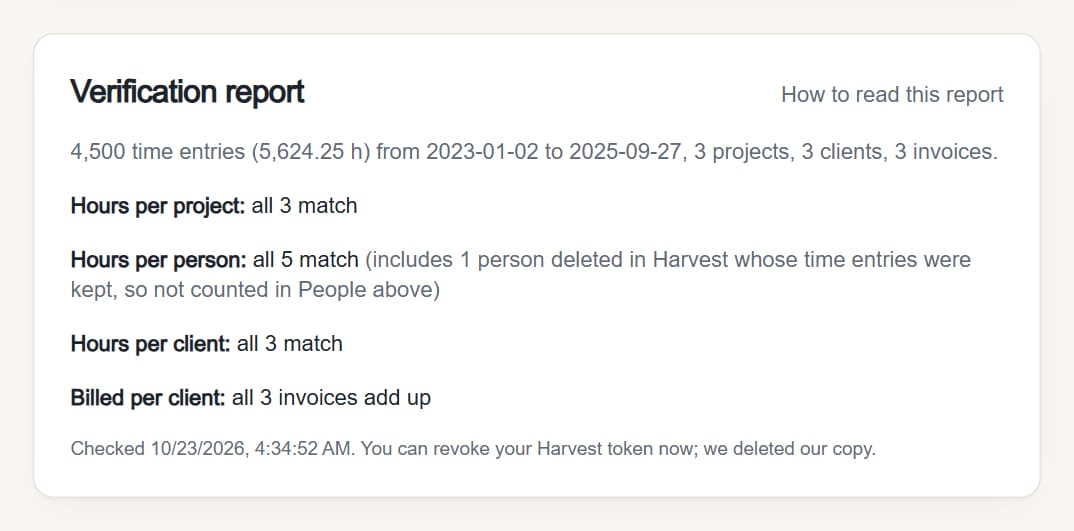
When the data is in, LockedHours compares its totals with Harvest's own reports (the page says Checking every figure against Harvest…). Then the title becomes either Import complete: 100% match with your Harvest data or Import complete: please review the differences, and a Verification report appears below the progress bars.
 (opens the full-size image)
How to read it, and what to do if something differs: Read the import verification report.
6. What's next
When the import is complete, a What's next box appears above the report. If you imported invoices, it says how your numbering continues, for example Invoice numbers continue from 2025-0008 as 2025-0009 (see Invoice numbering). Click Go to your timesheet to start tracking, or Invite your team so your teammates can sign in and see their imported history.
7. Revoke the token in Harvest
We delete our encrypted copy of the token as soon as the import finishes (the report says so). You can also delete it in Harvest ID → Developers. Revoking it doesn't affect anything already imported.
What happens next
- Everything from Harvest is in LockedHours: see What comes across from Harvest for the details, including what stays read-only.
- Your teammates were imported with their history, but they can't sign in until you invite them with the same email: Invite your team.
- Harvest isn't changed in any way. Keep it until you've checked the report and your team is tracking in LockedHours.
Common problems
"Harvest didn't accept this token"
The token was mistyped, cut short or revoked. Create a new one in Harvest ID → Developers, copy the whole of Your Token, and paste it again.
"… isn't an Administrator in …"
The token belongs to a Harvest user who isn't an Administrator. Ask a Harvest Administrator to create the token (they can do it on their own computer and send it to you securely), or to make you an Administrator in Harvest.
"Only admins of this LockedHours account can import."
Your LockedHours role is Manager or Member. Ask an admin to run the import.
"That doesn't look like a Harvest token"
You pasted something shorter than a token (often the token's name or the Account ID). Copy the long value under Your Token.
The import stopped
The page says The import stopped and shows the reason. Click Start again: it continues where it stopped. See My Harvest import stopped.
Didn’t find what you needed?
Ask in Help inside the app, or email [email protected]. We aim to reply within 2 business days.