Approve or reject timesheets
Admins and project managers review submitted weeks on the Approvals page: approve them (one by one or in bulk) or send them back with a note.
Who can do this: Admins turn it on; admins and managers approveUpdated · 2 min read
Turn on timesheet approval
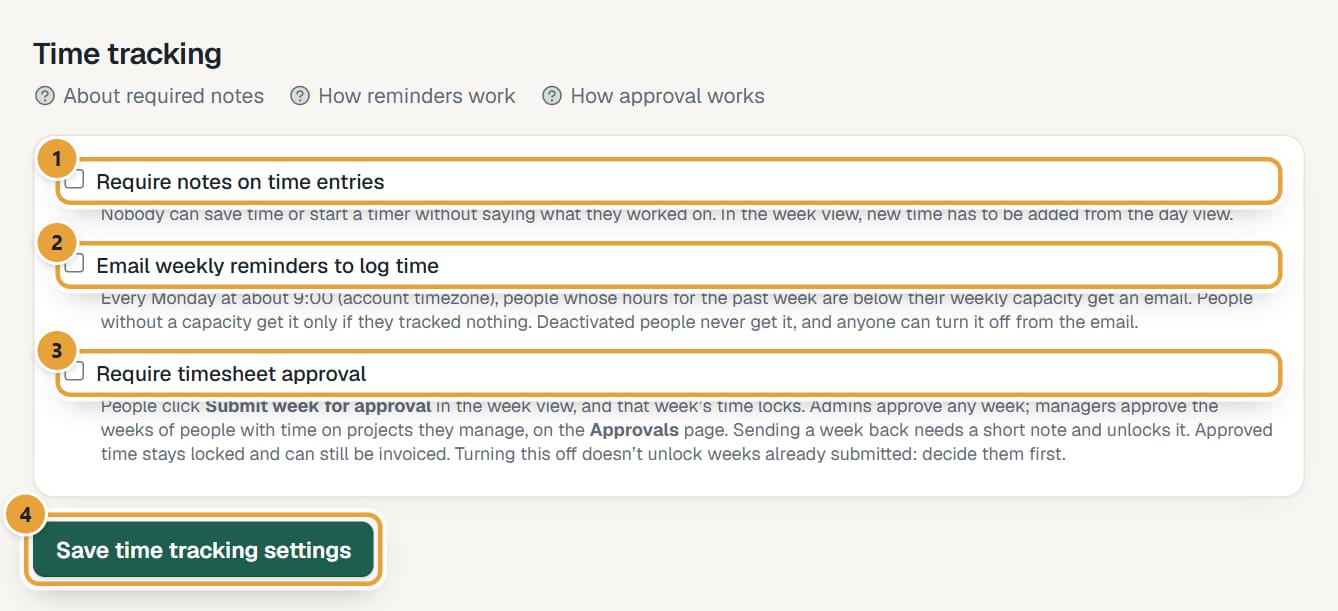
Step 1: Click Settings in the top menu and scroll to Time tracking.
Step 2: Tick Require timesheet approval and click Save time tracking settings.
 (opens the full-size image)
From then on everyone sees Submit week for approval in the week view (how people submit), and approvers see Approvals in the top menu. It's off by default. Turning it off stops new submissions, but weeks already submitted stay locked until someone decides them.
Who approves which weeks
| Who | Can approve |
|---|---|
| Admins | Every submitted week in the account, their own included. |
| Managers | Weeks of people with time on a project where they're a project manager (Manager ticked in the project's team). Never their own week. |
| Members | Nothing. They only submit their own weeks. |
Review and approve
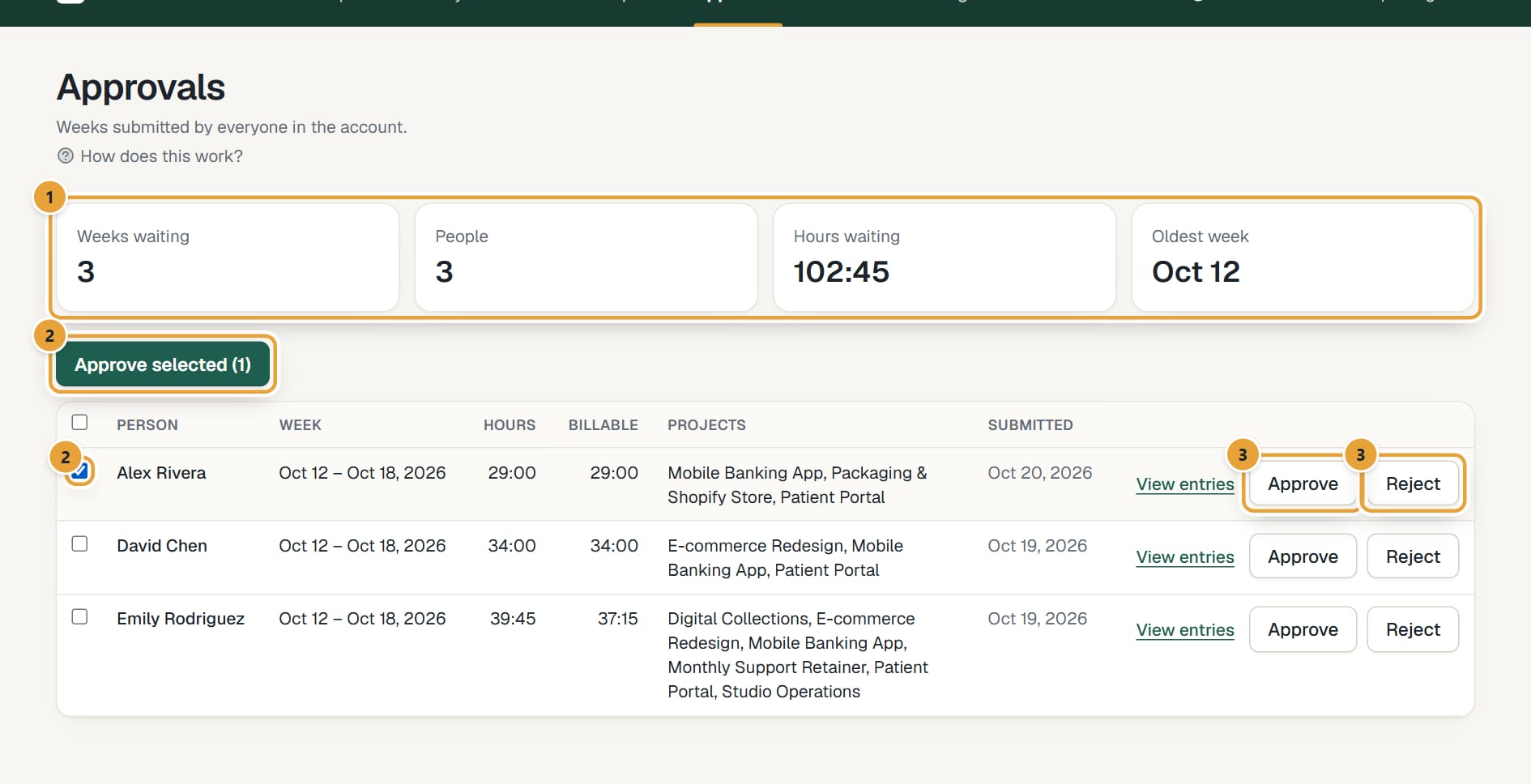
Step 1: Click Approvals in the top menu. At the top: Weeks waiting, People, Hours waiting and Oldest week.
 (opens the full-size image)
Step 2: Each row shows the Person, the Week, Hours, Billable hours, the Projects and when it was Submitted. Click View entries to see that week's entries in Reports → Detailed.
Step 3: Click Approve on a row. Or tick several rows (or the box in the header for all of them) and click Approve selected.
Approved time is marked Approved in reports and stays Locked: nobody can change it. It can still be put on invoices as usual.
Send a week back
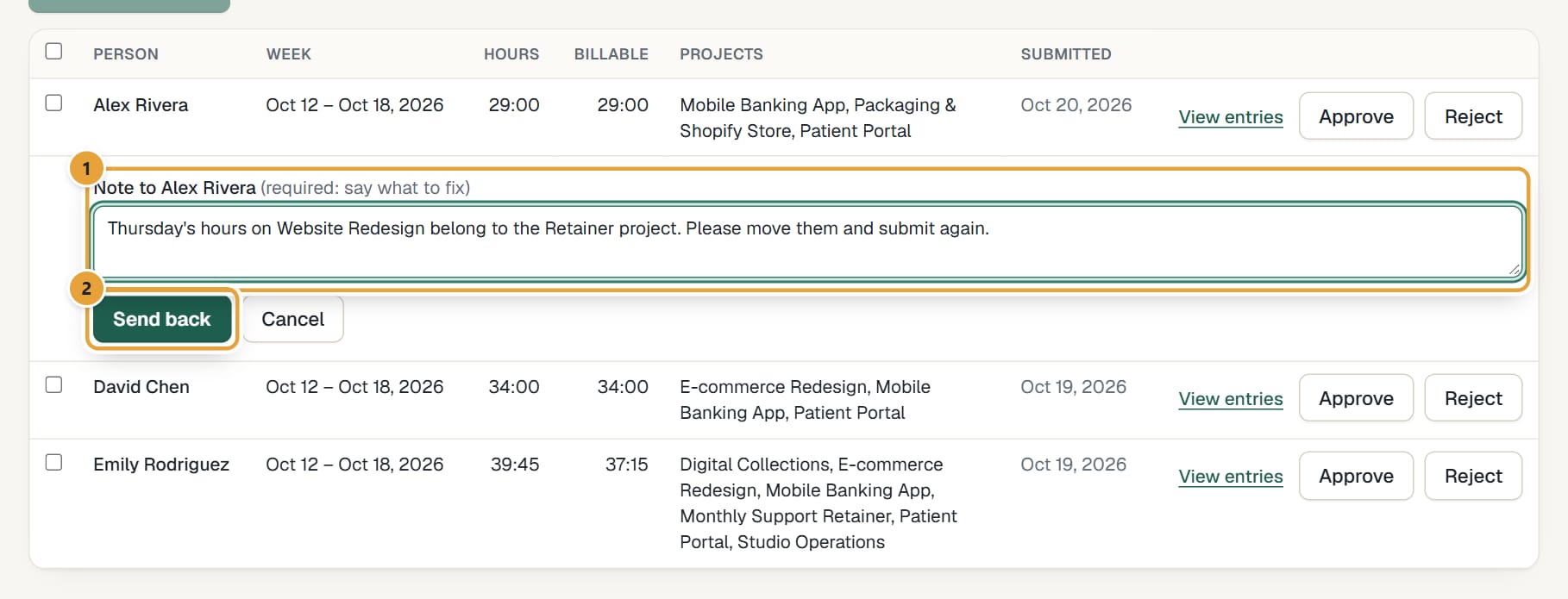
Step 1: Click Reject on the row.
Step 2: Write what to fix in the note (it's required), and click Send back.
 (opens the full-size image)
The week unlocks right away and the person gets an email with your note, signed "— LockedHours". They also see the note in their week view. When they submit it again, it comes back to this page.
Recently decided
Under the list, Recently decided shows the latest weeks approved or sent back, by whom, and the note. Admins see everyone's decisions; managers see their own.
Pending weeks in Reports
In Reports, the Pending approval tab lists the weeks waiting that you can approve, for the period and filters you chose, and Export CSV downloads them. The Approval filter shows time by status (Not submitted, Submitted (pending) or Approved) in the other tabs.
Weekly email to approvers
Once a week, on the day your week starts and from about 9:00 in your account's timezone, admins and managers with weeks waiting get one email listing them, with a link to Approvals. Nothing is sent when nothing is waiting, or once the free trial has ended.
Common problems
I don't see Approvals in the menu
Approval must be turned on in Settings → Time tracking, and you must be an admin, or a manager who is project manager on at least one project.
A week I expected isn't in my list
Managers only see weeks of people with time on projects they manage, and never their own. An admin sees every week.
"Those weeks were already decided, or you can't approve them."
Someone else decided them first, or they're outside your projects. Reload the page.
Didn’t find what you needed?
Ask in Help inside the app, or email [email protected]. We aim to reply within 2 business days.