Weekly reminders to log time
Once a week, people who tracked less than their weekly capacity (or nothing at all) get a short email with a link to last week's timesheet.
Who can do this: Admins turn it on; each person can turn it off for themselvesUpdated · 2 min read
Turn reminders on
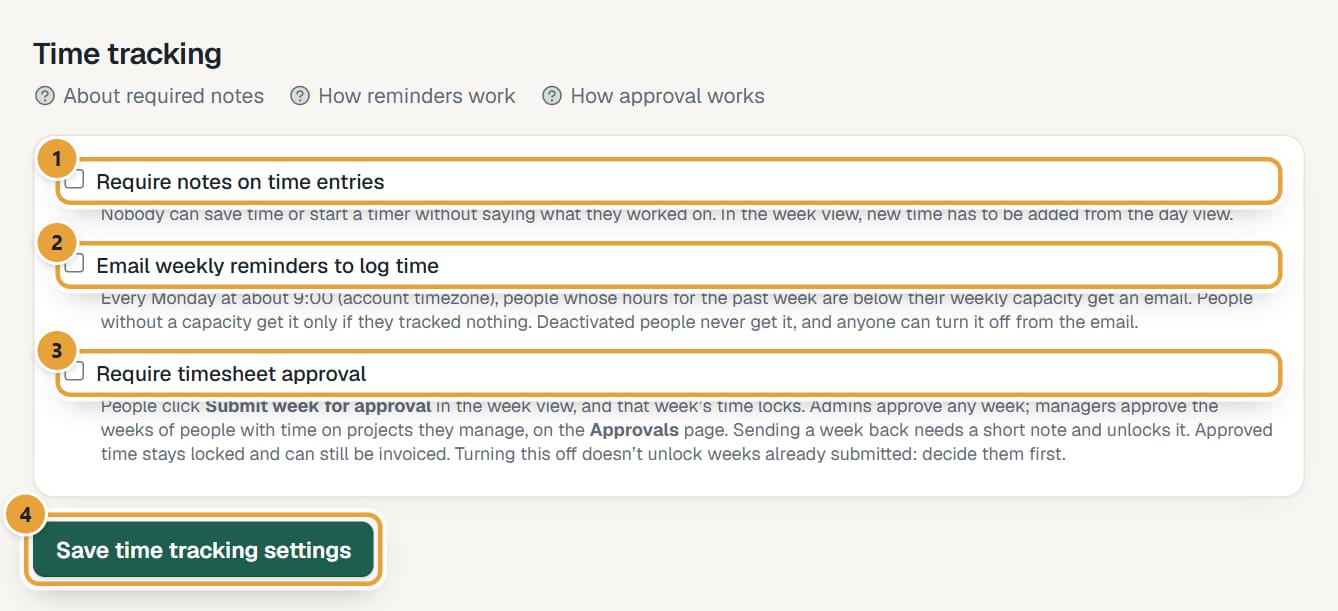
Step 1: Click Settings in the top menu and scroll to Time tracking.
Step 2: Tick Email weekly reminders to log time and click Save time tracking settings.
 (opens the full-size image)
When and to whom
- Once a week, on the day your week starts (Week starts on in Settings → Account preferences), from about 9:00 in your account's timezone.
- It looks at the week that just ended. Someone with a weekly capacity gets it if their hours are below it; someone without a capacity only if they tracked nothing.
- Only people who can sign in get it. People without an account and deactivated people never do.
- Each person gets at most one reminder a week. Nothing is sent once the free trial has ended.
What the email says
The subject is "Reminder: log your time for" followed by the week's dates. It says how many hours the person tracked against their capacity, has an Open last week's timesheet link, and is signed "— LockedHours".
Turn reminders off for yourself
Step 1: Click Turn these reminders off at the bottom of a reminder email.
Step 2: Click Turn off reminders. The page says Weekly reminders are off.
Step 3: Changed your mind? Click Turn them back on on that same page.
Didn’t find what you needed?
Ask in Help inside the app, or email [email protected]. We aim to reply within 2 business days.