Require notes on time entries
Turn on required notes so every time entry says what the work was. Useful when invoices list each entry or clients ask for detail.
Who can do this: Admins turn it on; it applies to everyoneUpdated · 2 min read
Turn it on
Step 1: Click Settings in the top menu and scroll to Time tracking.
Step 2: Tick Require notes on time entries and click Save time tracking settings.
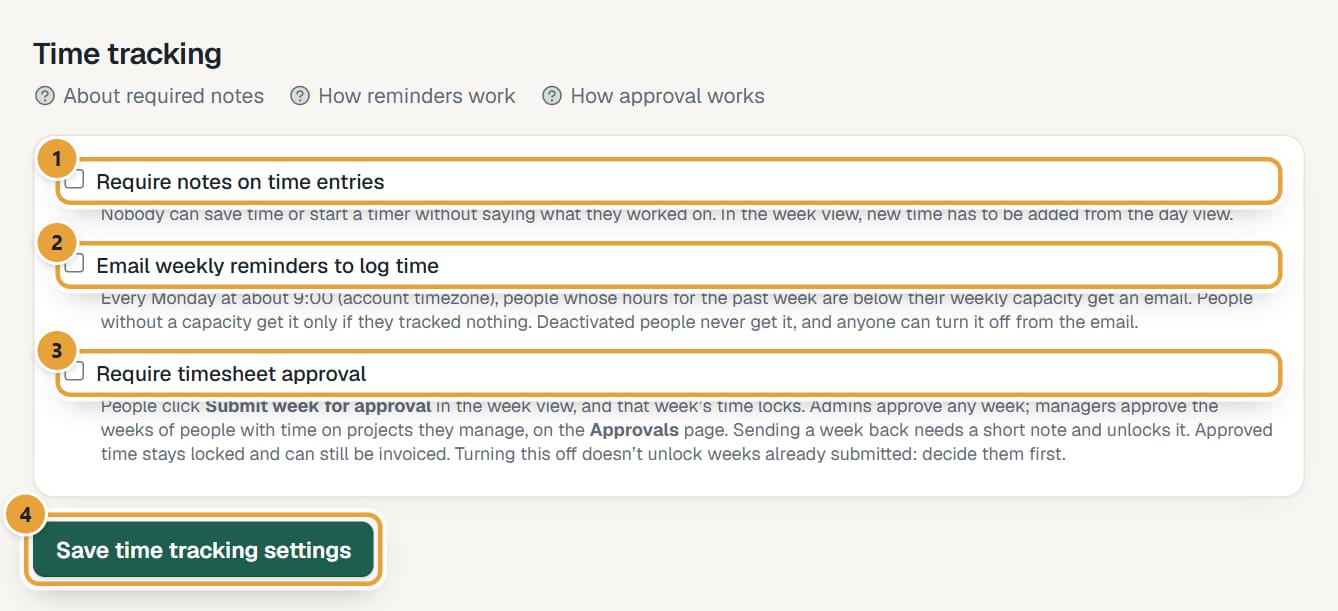 (opens the full-size image)
It applies to everyone at once, admins included. Untick it the same way to make notes optional again.
What changes for your team
- In the day view, the field says Notes (required). Saving hours or starting a timer without notes shows Notes are required in this account: write what you worked on.
- Editing an entry needs notes too, so older entries without notes get some when they're changed.
- Clicking Start on an entry without notes asks you to open the entry and add notes first.
- In the week view, a box above the grid explains the rule. The hours of time already in the grid can still be changed; new time has to be added from the day view.
- Time imported from Harvest and entries saved before you turned it on stay as they are.
Didn’t find what you needed?
Ask in Help inside the app, or email [email protected]. We aim to reply within 2 business days.