Submit your week for approval
When your account requires approval, you submit each week from the week view. Its time locks until an approver approves it or sends it back with a note.
Who can do this: Everyone on the team (their own week), when an admin turned on timesheet approvalUpdated · 2 min read
Submit a week
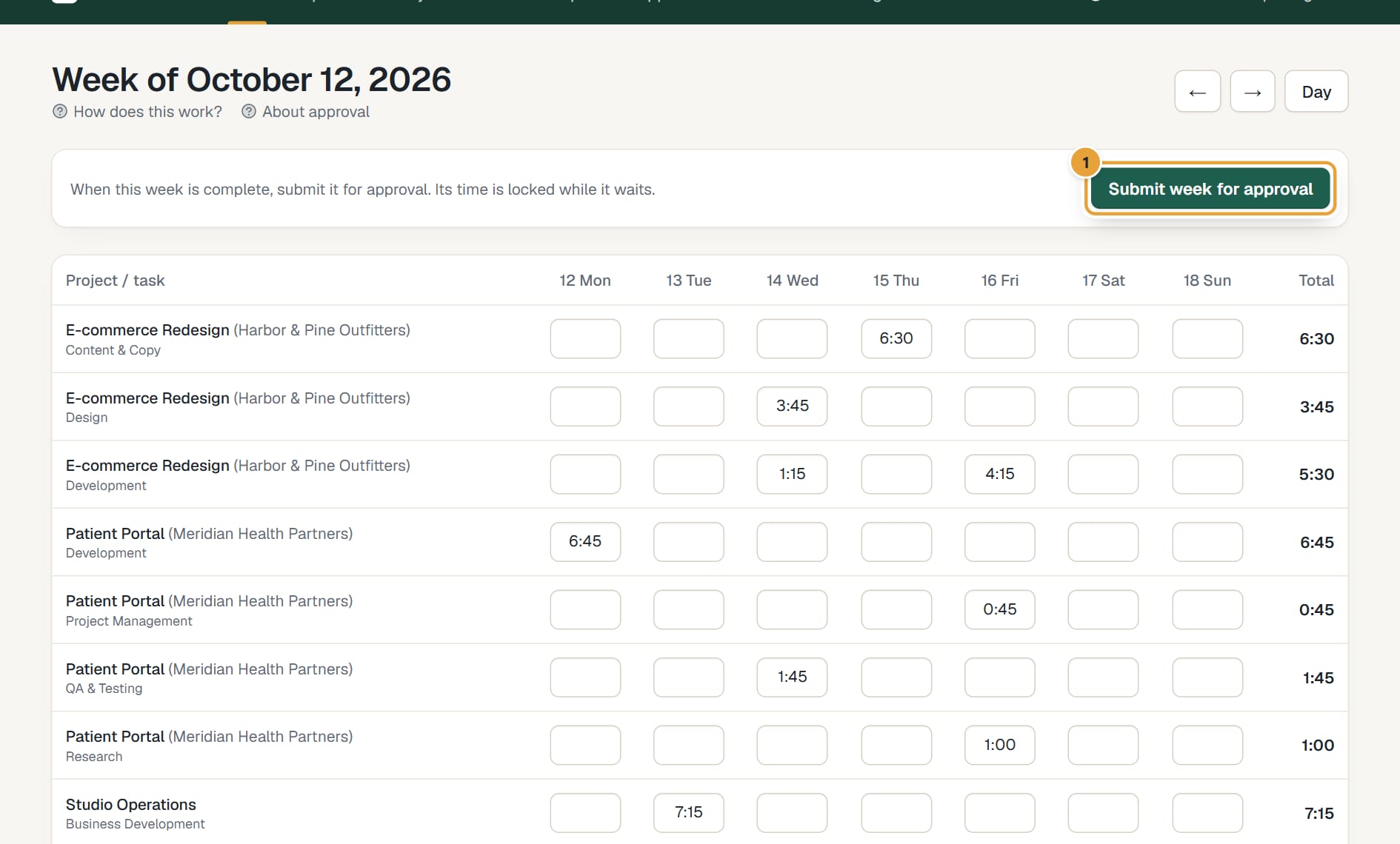
Step 1: In Time, click Week and go to the week you want to submit with ← and →. Check the hours, and stop any running timer.
Step 2: Click Submit week for approval and confirm.
 (opens the full-size image)
Step 3: The box above the grid now says Submitted · waiting for approval, with the date you submitted it.
You can submit any week that has time in it, including past weeks. Each week is submitted on its own.
What's locked while it waits
- You can't add, edit or delete time on that week's days, in the week view or the day view. The day view says This week is submitted for approval, so its time is locked.
- Changes made offline for those days are refused when they sync, and appear under Couldn't sync with the reason.
- Other weeks are not affected.
Change something before it's approved
Click Withdraw in the week view. The week unlocks; fix your time and click Submit week for approval again. Once a week is approved, it can't be withdrawn.
When a week is sent back
If an approver rejects the week, you get an email with their note, and the week view shows Sent back with the note and who sent it. The week is unlocked: fix the time and submit it again.
When a week is approved
The week view shows Approved, by whom and when. Approved time stays Locked for good (it can still be invoiced). If something must change, ask an admin.
Common problems
"A timer is running this week. Stop it before submitting the week."
Open the day with the running timer, click Stop, then submit again.
"There's no time to submit this week."
The week has no time entries. Add your time first.
I don't see Submit week for approval
Your account doesn't require approval. Only an admin can turn it on in Settings → Time tracking.
"This week is submitted for approval, so its time can't change…"
Click Withdraw in the week view, or ask your approver to send it back.
Didn’t find what you needed?
Ask in Help inside the app, or email [email protected]. We aim to reply within 2 business days.