Add, edit or delete time entries
Log hours after the fact on any day, in whichever format you like, and fix or delete entries that aren't locked.
Who can do this: Everyone on the team (their own time)Updated · 2 min read
Add hours to a day
Step 1: In Time, open the day: click it in the week strip, or use ← and → to go to another week first (on a phone, swipe the strip sideways).
Step 2: Click + Track time (on a phone, Track time at the bottom right) and choose the Project and Task. Add Notes (required when the label says Notes (required)).
Step 3: Type the time in Hours and click Save entry. With hours filled in, the button saves an entry instead of starting a timer, and a message says Entry saved.
You can type 1:30, 1.5, 1,5, 1h 30m, 90m or 2h. The +0:15, +0:30 and +1:00 buttons add that much to what's in Hours. The most you can enter on one entry is 24 hours.
Edit an entry
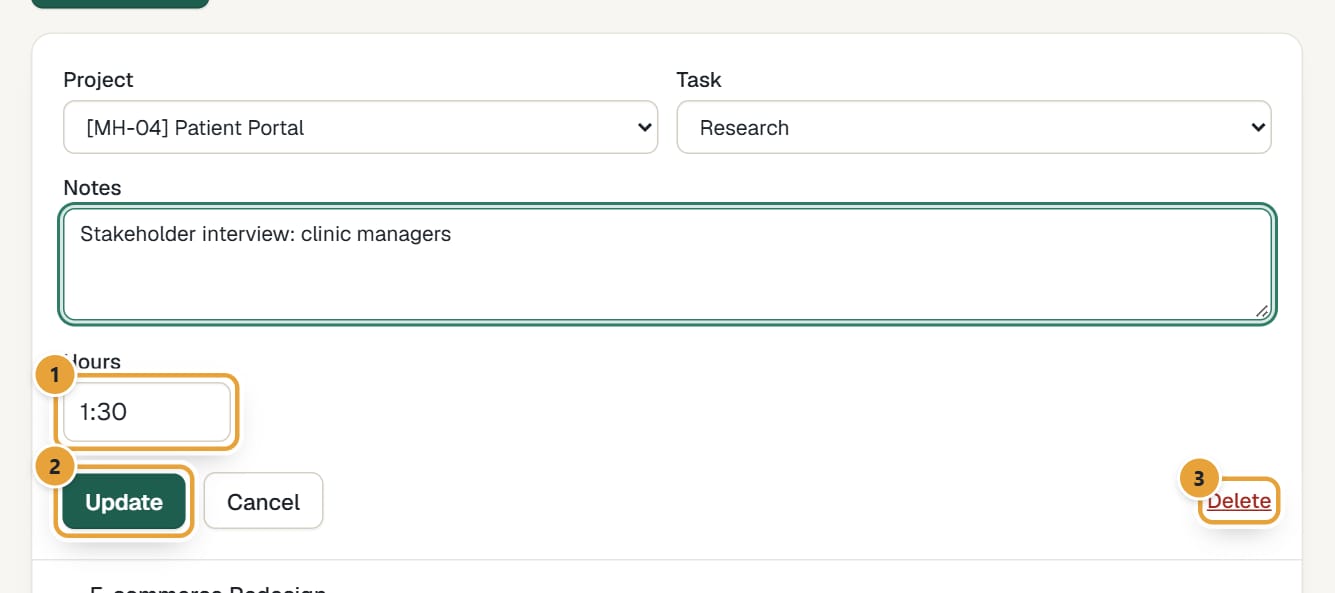
Step 1: Click Edit on the entry (on a phone, tap the entry: it opens in a sheet from the bottom of the screen). You can change Project, Task, Notes and Hours.
 (opens the full-size image)
Step 2: Click Update to save, or Cancel to leave it as it was (on a phone, close the sheet with × or tap outside it).
- While a timer is running on the entry, Hours isn't shown and the form says The timer is running on this entry: stop it to change the hours.
- Moving an entry to another project or task recalculates its billable rate for the new project and task. Changing only the hours or notes keeps the rate the entry already had.
- To move an entry to another day, delete it and add it again on the right day.
Delete an entry
Click Edit (on a phone, tap the entry), then Delete. The entry disappears and a message at the bottom of the screen says Entry deleted: click Undo in it within a few seconds to bring the entry back. Once the message has gone, deleted entries can't be recovered.
Entries you can't change
Entries that show Locked instead of buttons (on a phone, they don't open when tapped) are on an invoice, in a week that's submitted for approval or approved, or came locked from Harvest. See A time entry is locked.
Common problems
"Enter hours like 1:30 or 1.5 (up to 24)."
The hours couldn't be read, or are more than 24. Use one of the formats above, and split longer work into several entries.
"Choose a project."
Pick a project from the list before saving.
"Notes are required in this account: write what you worked on."
An admin turned on required notes. Write something in Notes and save again. See Require notes on time entries.
Can my manager fix my time?
Not in the app yet: everyone edits their own entries. Managers can see everyone's time in Reports → Detailed.
Didn’t find what you needed?
Ask in Help inside the app, or email [email protected]. We aim to reply within 2 business days.