Fill in your weekly timesheet
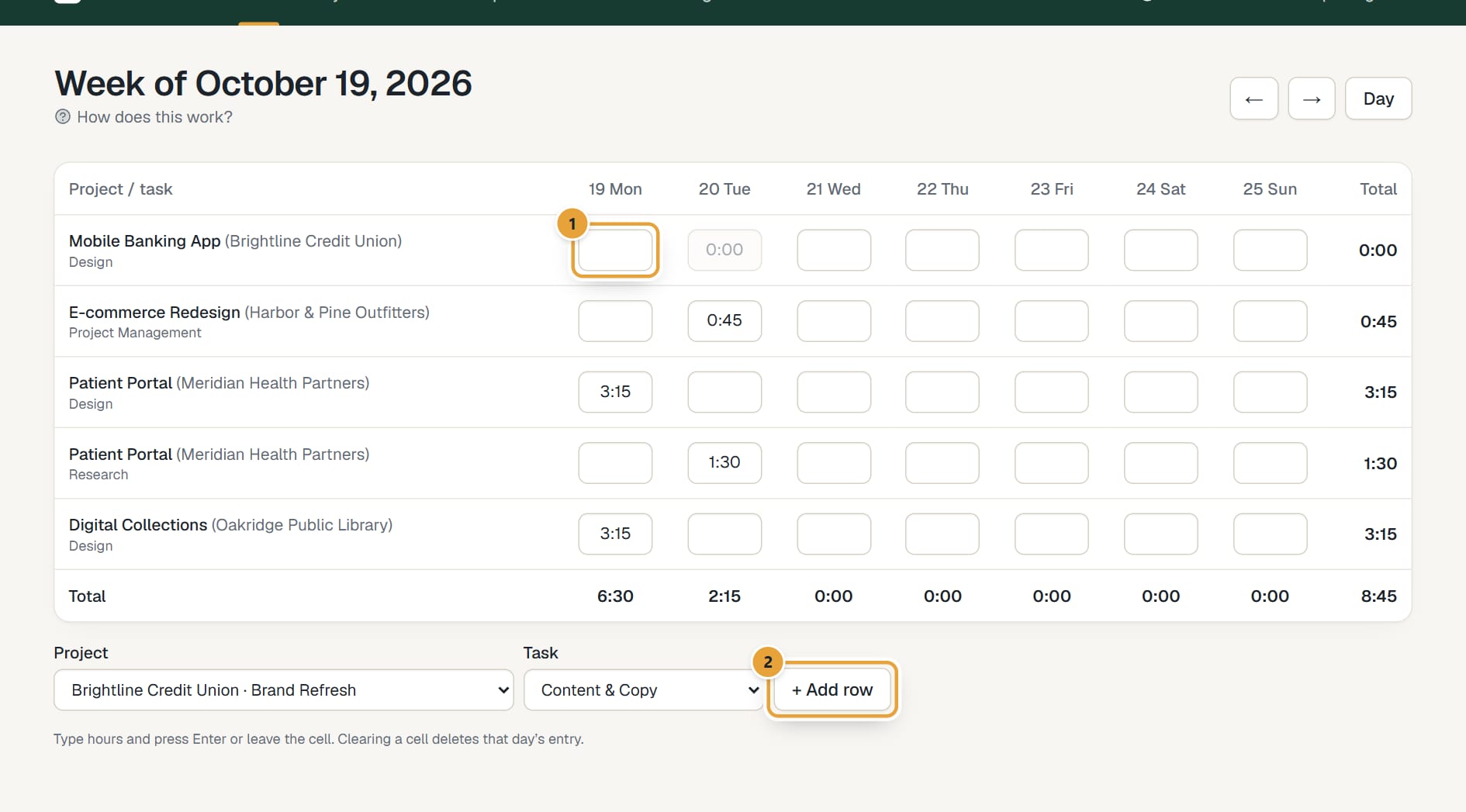
The week view is a grid: one row per project and task, one column per day. Type hours into the cells and they save on their own. On a phone it's a list of the chosen day plus your week by project.
Who can do this: Everyone on the team (their own time)Updated · 3 min read
Open the week
In Time, click Week. The title says Week of and the first day. Use ← and → to change week, and Day to go back to the day view. The week starts on the day your account is set to (Monday unless your Harvest account said otherwise); an admin can change it in Settings → Account preferences.
 (opens the full-size image)
Type hours
Step 1: Click a cell in the row of the project and task, under the right day.
Step 2: Type the hours (1:30, 1.5, 90m…) and press Enter, or click somewhere else. The cell saves on its own, and the totals update.
Step 3: To remove a day's time, clear the cell and press Enter. That deletes the day's entry.
Add a row
Step 1: Below the grid, choose a Project and a Task.
Step 2: Click + Add row. An empty row appears; type hours into it.
Rows appear automatically for every project and task you tracked that week. An added row that you leave empty disappears when you reload.
Cells you can't type in
A greyed-out cell (hover over it to read Several entries, locked or running: edit in the day view) has more than one entry for that task on that day, a running timer, or locked time. Click the day in the day view to change it there.
When the whole week is greyed out and + Add row is gone, the week is submitted for approval or approved: see Submit your week for approval.
On a phone
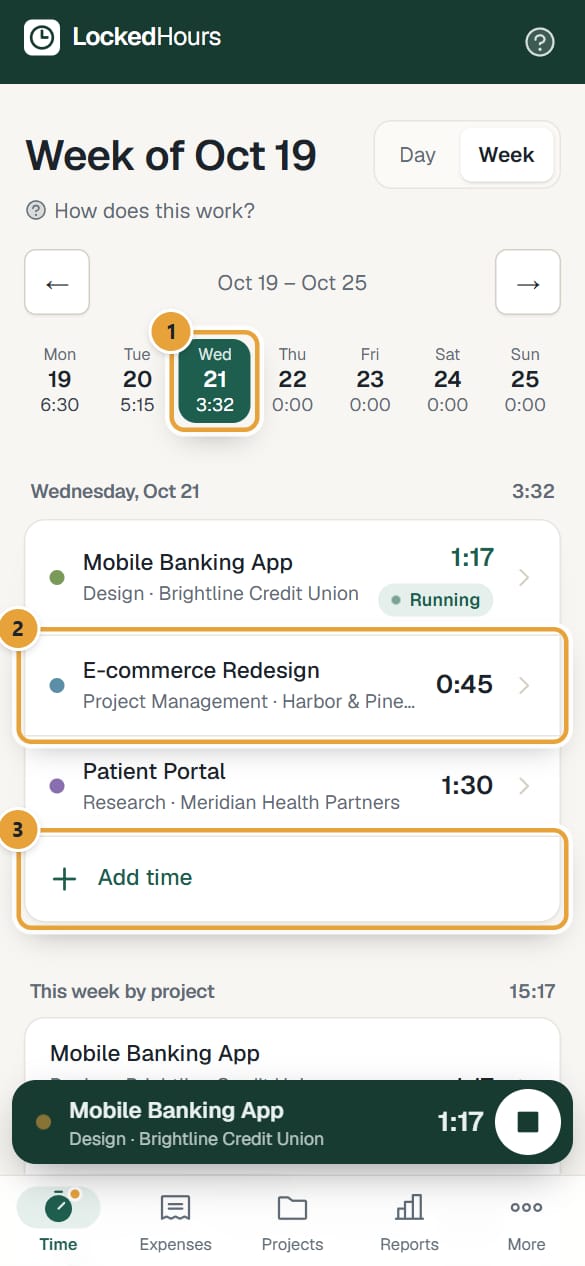
On a phone the week isn't a grid. Under the title, Day | Week switches between the day and the week, and ← and → change week (This week brings you back). The seven days are a strip that always fits on the screen, each with its hours: tap one to see that day's time below it.
 (opens the full-size image)
Step 1: To change a day's hours, tap the row: a sheet opens with its Hours field. Type the time and tap Save, or tap Clear hours to delete that day's entry.
Step 2: To add time, tap Add time under the day's list, choose the Project and Task, type Hours and tap Save. When notes are required, the button says Add time in the day view and takes you there.
Step 3: Under This week by project, each project and task shows its week total. Tap it to fill in all seven days at once, then tap Save week.
Rows with a Locked badge, or 2 entries (or more), open the day view instead, where you can change them one by one. A row with Running has a timer on it: its hours count up as it runs.
Common problems
"This day has several entries for this task; edit them in the day view."
The grid can't guess which entry to change. Open the day view to edit them one by one.
"A timer is running on this entry; stop it first."
Stop the timer in the day view, then type the hours in the grid.
"Notes are required in this account. Add new time in the day view, where you can write notes."
The cell was empty, so it would create an entry without notes. Click Day and add the time with its Notes there.
The week starts on the wrong day
The week start comes from your Harvest import, or Monday for new accounts. An admin can change it in Settings → Account preferences (Week starts on). See Change your timezone, currency, time format or week start.
Didn’t find what you needed?
Ask in Help inside the app, or email [email protected]. We aim to reply within 2 business days.