A time entry is locked
Locked means the entry is on an invoice, its week was submitted for approval or approved, or it was approved or invoiced in Harvest. Here's what to do.
Who can do this: Everyone on the teamUpdated · 2 min read
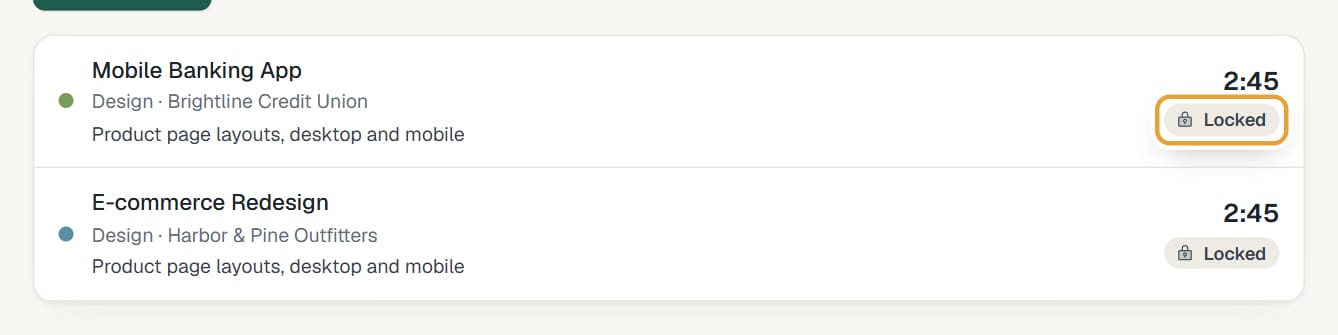
Locked entries show Locked instead of the Start and Edit buttons in the day view (on a phone, they don't open when tapped), and a greyed-out cell in the week view. If you try to change one, you'll see This entry is locked (invoiced or approved) and can't be changed.
 (opens the full-size image)
It's on a draft invoice
Ask whoever handles invoices to remove the line from the draft (Edit draft, ×, Save draft) or delete the draft (Delete draft). The hours unlock, and you can edit them.
It's on an issued invoice
The invoice is final. To change the hours, the invoice must be cancelled with a full credit note, which unlocks them: Correct an invoice with a credit note. Then invoice them again.
Its week is submitted for approval
While a week waits for approval, the day view says This week is submitted for approval, so its time is locked. and the week view says Submitted · waiting for approval. Click Withdraw in the week view to take it back, change your time and submit it again; or ask your approver to send it back. See Submit your week for approval.
Its week was approved
Approved time stays locked, also after an invoice is deleted or credited. Reopening an approved week isn't available in the app yet: ask an admin to write to us.
It was imported locked from Harvest
Entries invoiced or approved in Harvest stay locked, as they were there. Unlocking them in LockedHours isn't available; write to us if one must change.
Didn’t find what you needed?
Ask in Help inside the app, or email [email protected]. We aim to reply within 2 business days.