Track time with the timer
Start a timer on a project and task, stop it when you're done, and restart it later on the same entry. One timer runs at a time.
Who can do this: Everyone on the teamUpdated · 5 min read
Before you start
- At least one active project you're assigned to. If the page says There are no active projects assigned to you yet, see I can't see a project when tracking time.
The day view
Click Time in the top menu (on a phone, the Time tab at the bottom of the screen). The page title is the date you're looking at (today, to begin with; on a phone it says Today). Under it, a strip of seven days shows the hours tracked on each day of the week, a running timer's time included as it counts; click a day to open it. Week total adds up the whole week, and Back to today appears when you're on another day.
- On a computer, the arrows ← and → jump a week back or forward, and Week opens the weekly timesheet.
- On a phone, swipe the strip of days sideways to go a week back or forward; it stays at the top of the screen while you scroll. Day and Week at the top right switch between the day and the weekly timesheet.
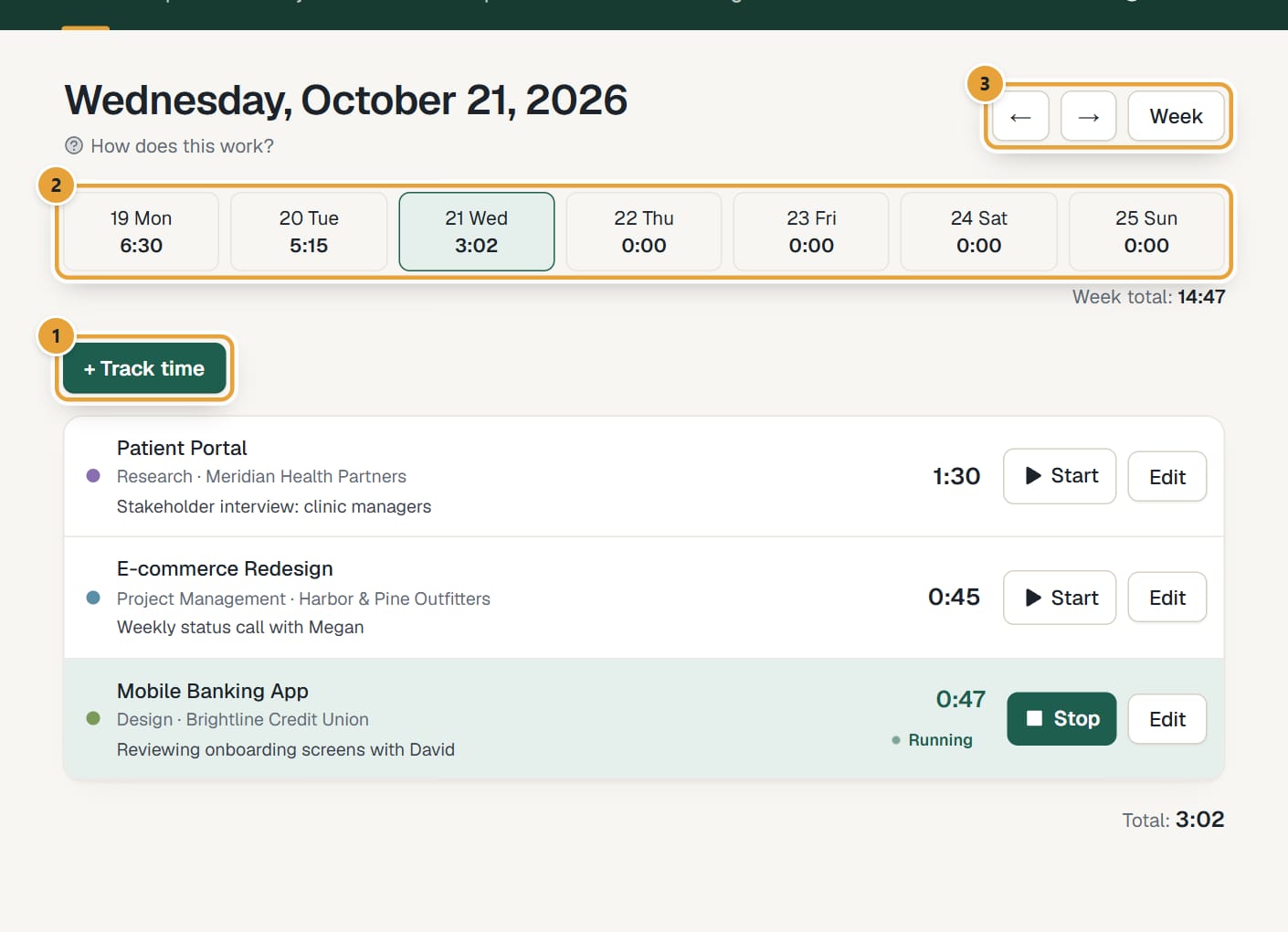 (opens the full-size image)
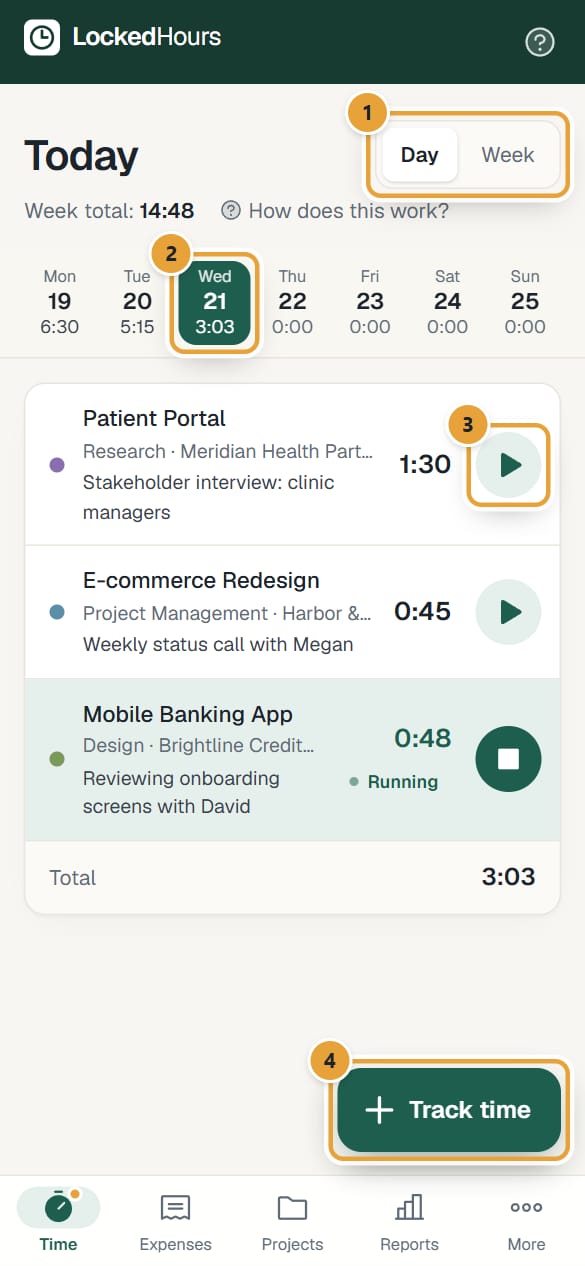 (opens the full-size image)
Start a timer
Step 1: Click + Track time. On a computer, a day with no time yet already has the form open. On a phone, tap the green Track time button at the bottom right: the form opens as a sheet from the bottom of the screen.
The form starts with the project and task you used last on this device.
Step 2: Choose the Project. Projects are grouped by client; project codes appear in square brackets.
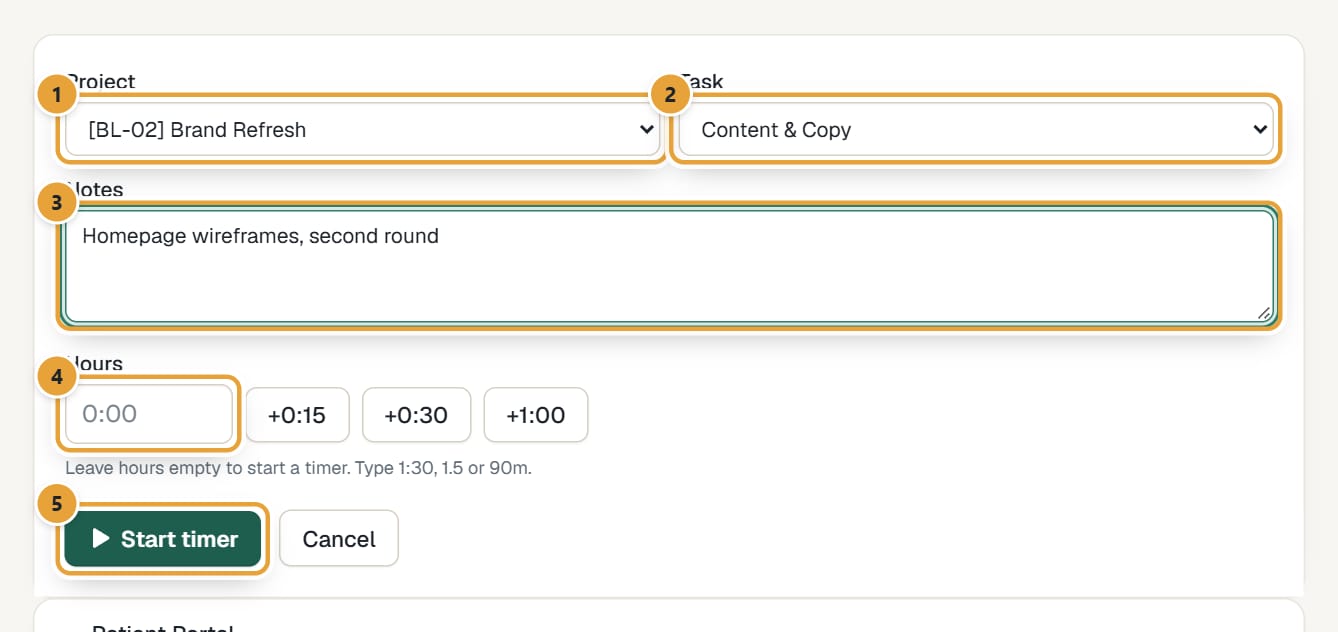 (opens the full-size image)
Step 3: Choose the Task. The list shows the tasks set up for that project; if it has none, it says No task.
Step 4: Write what you're working on in Notes. Notes appear in reports, and on invoices made with one line per Time entry (detailed).
Notes are optional unless an admin turned on Require notes on time entries: then the label says Notes (required) and the entry can't be saved without them. See Require notes on time entries.
Step 5: Leave Hours empty and click Start timer.
The button says Start timer while Hours is empty and Save entry once you type hours. The entry appears with a green background, the word Running and its time counting up (the display updates every few seconds and shows whole minutes).
Stop the timer
Step 1: Click Stop on the running entry (on a phone, the round ■ button), or Stop in the timer bar. The elapsed time is added to the entry's hours.
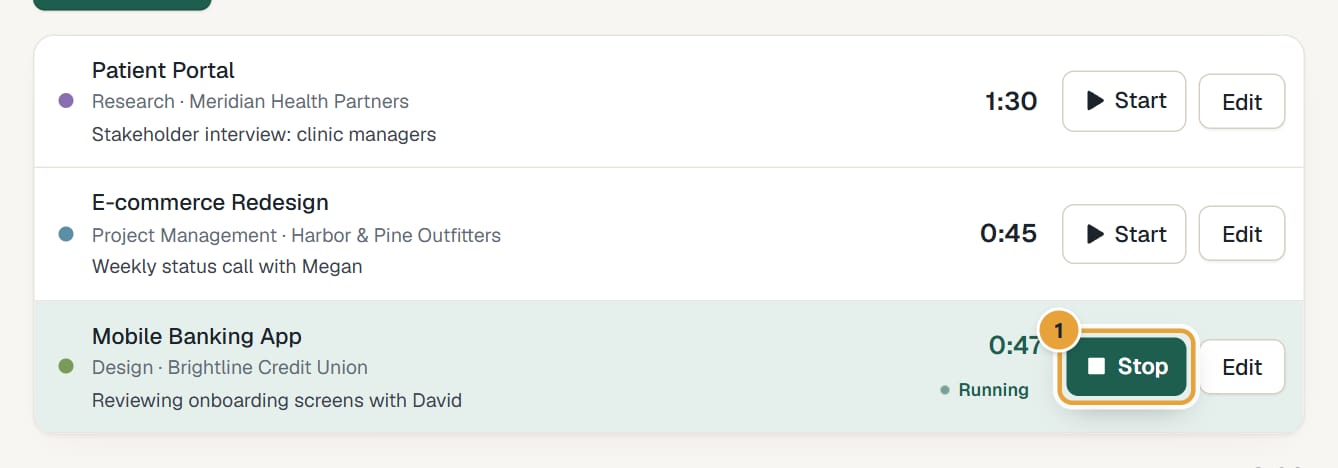 (opens the full-size image)
The timer bar: your timer on every page
While a timer runs, every app page shows it: on a computer, as a green strip under the top menu; on a phone, as a dark bar just above the tabs at the bottom. It shows the project, the task and client, and the time so far. Click Stop in it (on a phone, the round ■ button) to stop the timer from wherever you are, or click the bar to open the entry's day. On a phone, the Time tab also has an orange dot while a timer runs.
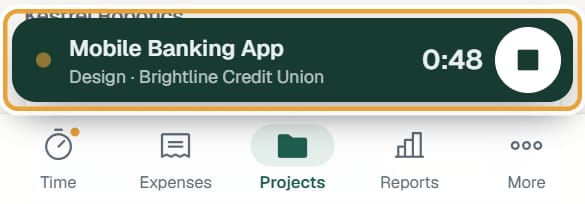 (opens the full-size image)
- If the timer was started on another day, the bar says Started yesterday or the date, for example Started Oct 20. A timer running since yesterday is usually one you forgot: see My timer is still running.
- On the day of the running entry the bar isn't shown: the entry itself is highlighted there.
- When you stop it, a message at the bottom of the screen confirms it, for example Timer stopped · 1:42.
Restart or switch tasks
- To continue an entry later, click Start on it (on a phone, the round ▶ button). The new time is added to what's already there; you don't get a second entry.
- Only one timer runs at a time. Starting a timer (a new one or Start on another entry) stops the running one first and saves its time.
- To fix the project, task, notes or hours afterwards, click Edit (on a phone, tap the entry). See Add, edit or delete time entries.
How hours are shown
Hours are shown the way your account is set: decimal (1.50) or hours and minutes (1:30). Accounts imported from Harvest use Harvest's setting; new accounts use decimal. An admin can change it in Settings → Account preferences: see Change your timezone, currency, time format or week start.
Common problems
I forgot to stop the timer
Click Stop in the timer bar, then open the entry (Edit, or tap it on a phone) and correct the Hours. See My timer is still running.
The Start and Edit buttons are missing on an entry
The entry says Locked: it's on an invoice (a draft counts), its week is submitted for approval or approved, or it came locked from Harvest. On a phone, a locked entry doesn't open when you tap it. See A time entry is locked.
"That project is archived."
Someone archived the project. Ask a manager to restore it, or track to another project.
"Notes are required in this account: open the entry and add notes before starting the timer."
Your account requires notes and this entry has none. Click Edit (on a phone, tap the entry), write the Notes, click Update, then Start.
Didn’t find what you needed?
Ask in Help inside the app, or email [email protected]. We aim to reply within 2 business days.