Set up your account: the first-steps checklist
Your home page shows a checklist that ticks itself off as you go: set up a client and project (or import), track your first hour, invite a teammate and create your first invoice.
Who can do this: AdminsUpdated · 3 min read
Before you start
- An account you created yourself (the checklist is only shown to admins).
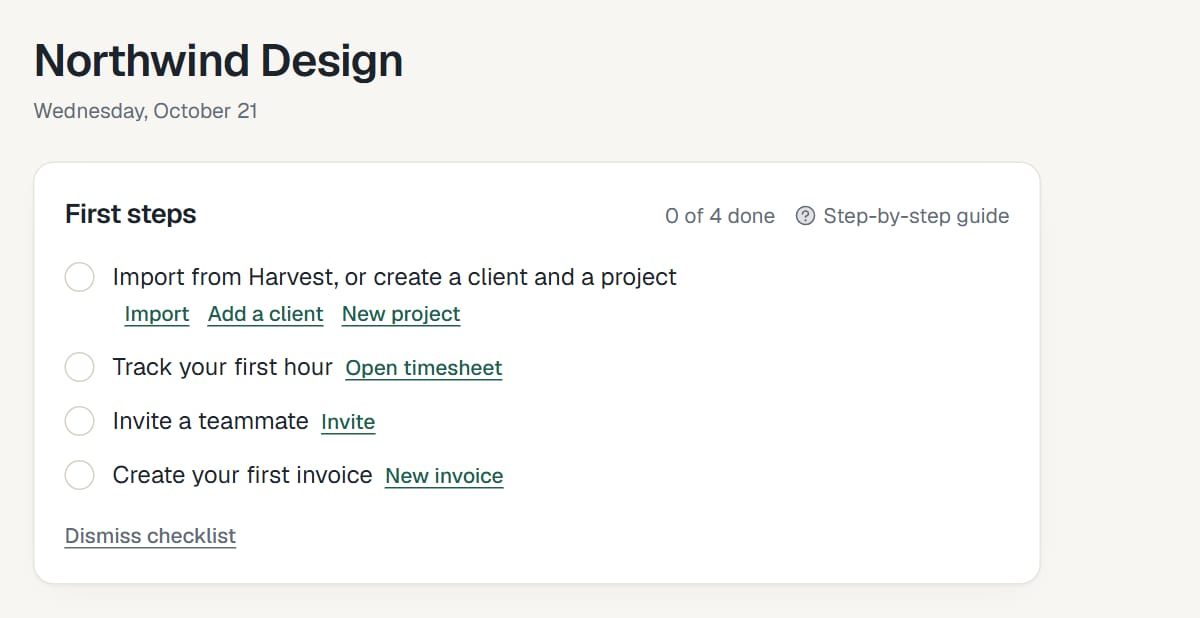
Click the LockedHours logo at the top left to open your home page. Under your company name you'll see First steps, with how many of the four steps are done. Each step has links that take you straight to the right page, and ticks itself off when the work is really done (for example, once a time entry exists).
 (opens the full-size image)
The four steps
Step 1: Import from Harvest, or create a client and a project. Use Import to bring everything across from Harvest, or Add a client and New project to start by hand.
Guides: Import your Harvest account, Add clients and contacts and Create a project.
Step 2: Track your first hour. Click Open timesheet and log some time, with the timer or by typing hours.
Guide: Track time with the timer.
Step 3: Invite a teammate. Click Invite to open the Team page and send an invitation by email.
Guide: Invite your team.
Step 4: Create your first invoice. Click New invoice to turn tracked time into a draft invoice.
Before you send real invoices, fill in your business details: Set up invoicing. Then: Create an invoice from tracked time.
Hide the checklist
Click Dismiss checklist under the steps (it says Hide this once everything is done). It disappears for every admin in the account. There's no way to bring it back, but nothing else changes: every page it links to is in the top menu.
Your home page
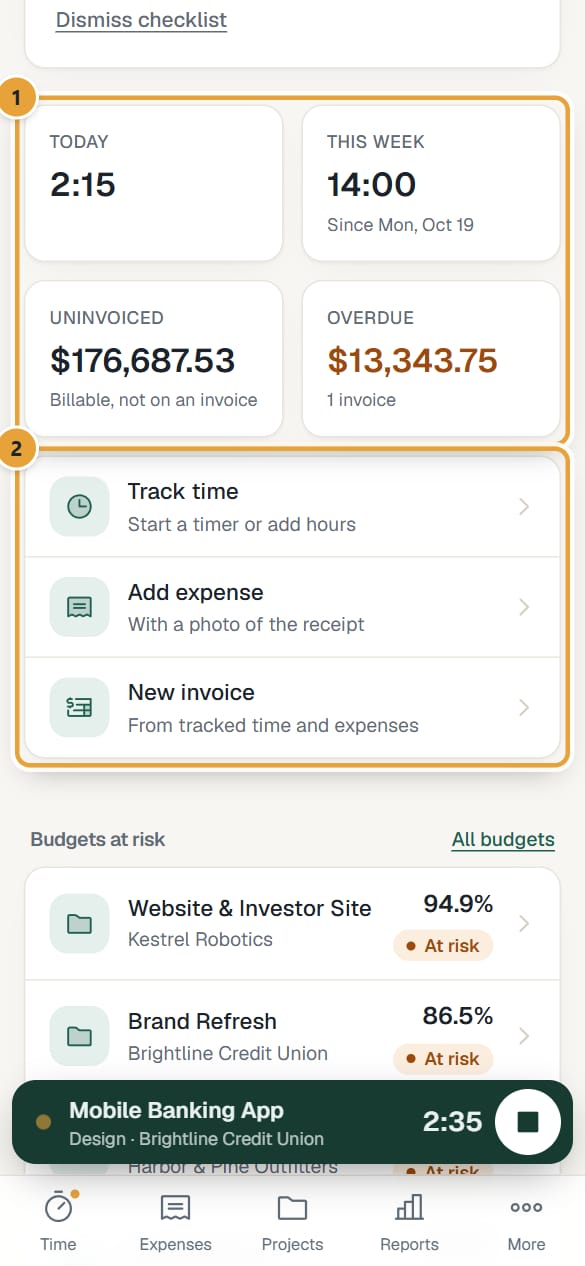
Under the date, the home page shows your hours Today and This week, and for admins and managers what's Uninvoiced (billable, not on an invoice) and Overdue (open invoices past their due date). Below are shortcuts: Track time, Add expense and, for admins and managers, New invoice. If any project has reached its budget alert, Budgets at risk lists it (At risk or Over budget, with the % used), and Overdue invoices lists up to five overdue invoices with the amount due.
 (opens the full-size image)
Once the checklist is hidden, the home page still shows how many time entries, projects and clients you have at the bottom, and a link to your latest Harvest import. If the account has no time yet and you haven't imported, it shows an Import from Harvest button.
What happens next
- Use the top menu to move around: Time, Expenses, Projects, Team, Reports, Invoices and Settings. On a phone, the menu is the bar at the bottom of the screen: Time, Expenses, Projects, Reports and More. More shows which account and email you're signed in with, and opens the other sections (admins and managers also find Clients and Tasks there), Help and support, your password and Sign out.
- Not everyone sees every item: members don't see Invoices or Settings, and managers don't see Settings. See Roles and permissions.
Common problems
I don't see the checklist
It's only shown to admins, and only until someone dismisses it. Accounts that joined through an invitation see the normal home page.
A step stays unticked although I did it
Steps tick from real data: a client and a project must both exist (or a Harvest import must have finished), a time entry tracked in LockedHours must exist (imported entries don't count), an invitation must have been sent, and an invoice created in LockedHours must exist (a draft counts). Reload the home page after doing it.
Didn’t find what you needed?
Ask in Help inside the app, or email [email protected]. We aim to reply within 2 business days.